Torii Image Translator Updates
Torii, rebuilt
This is the largest update Torii has ever had. Over the past seven weeks the website and the extension have been rebuilt around a single shared editor, the text renderer has been rewritten to match the server exactly, and both have been made to work properly on phones and tablets for the first time. The editor is also faster than it has ever been on every device and browser, with very long pages the biggest difference of all. Here is what changed.
An entirely new interface
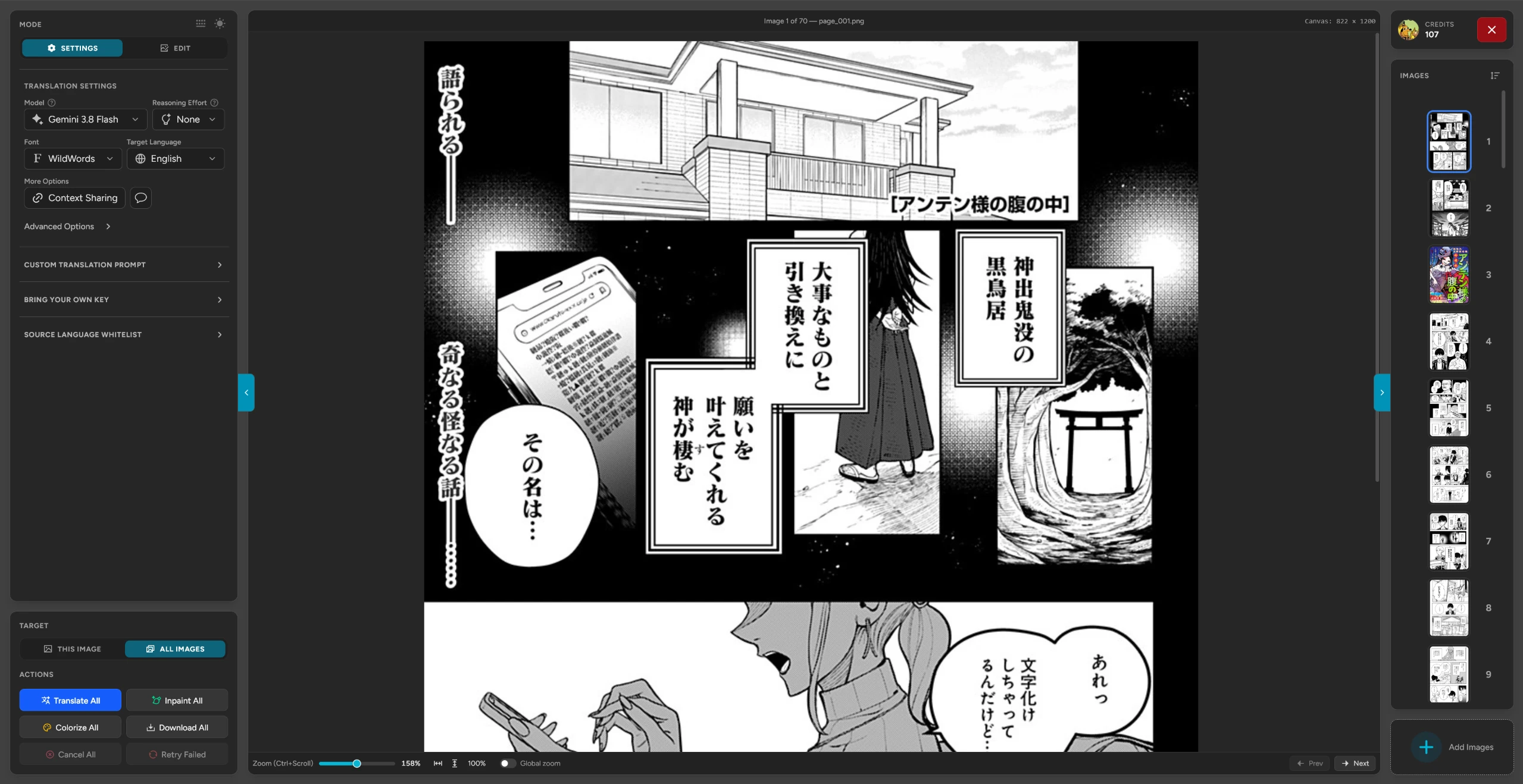
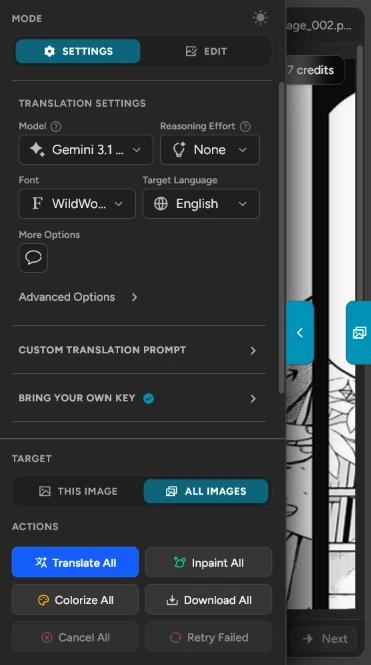
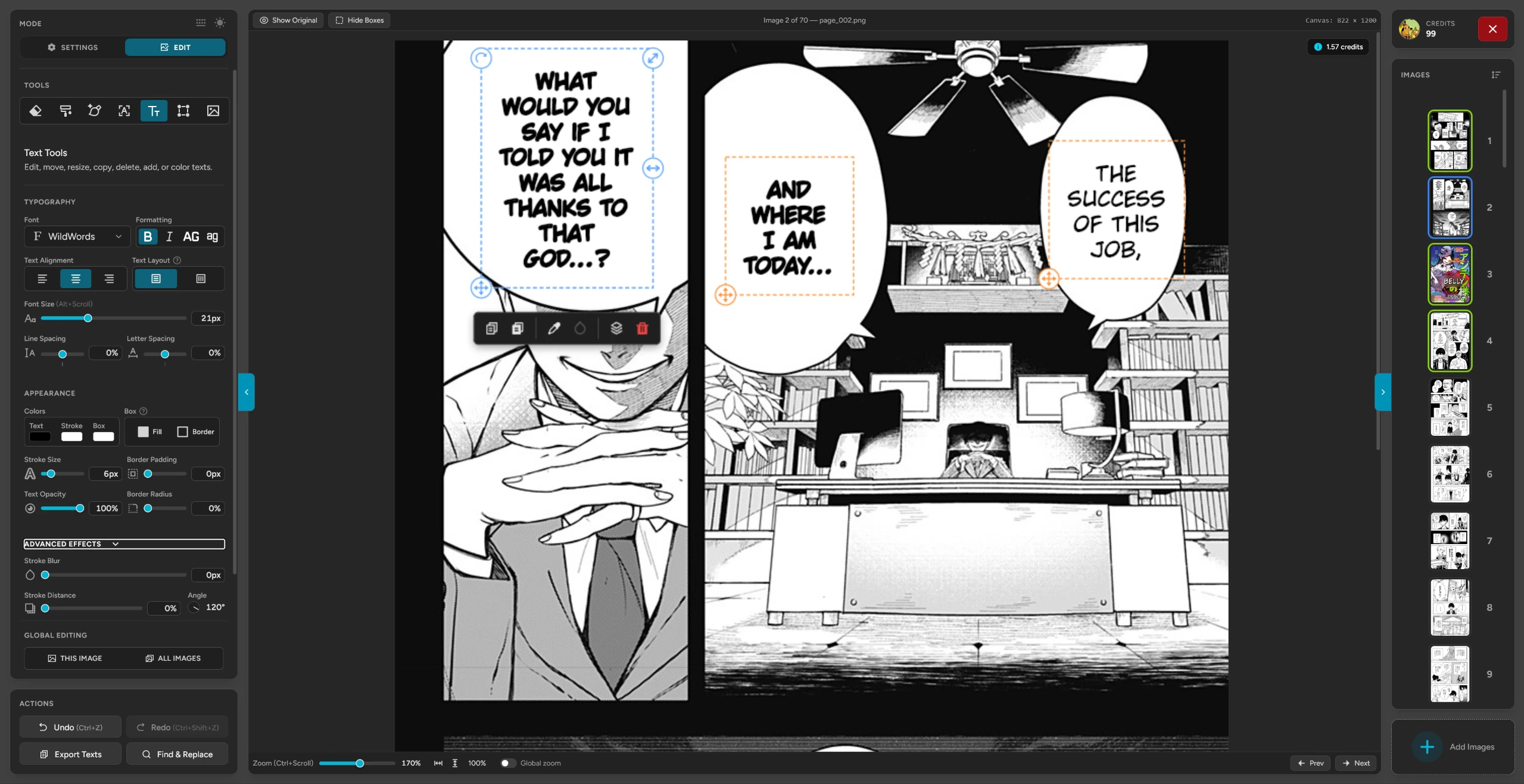
Every surface has been redesigned. The translate page is now a proper workspace: a collapsible settings panel on one side, an image browser on the other for moving between and reordering your pages, and the canvas given the whole middle. Nothing is buried in a menu any more, and the layout collapses sensibly all the way down to a phone.
The extension got the same treatment, and then some. Its edit mode is no longer a cut-down version of the website's - it is the website's editor, running directly on the page you are reading. The popup has been redesigned from scratch, and the on-page Torii controls have been rebuilt into a single compact bar that stays out of the way until you need it.
- One editor everywhere. The same tools, shortcuts and rendering on the website and in the extension, on every browser.
- Collapsible panels. Hide the settings or the image browser to give the canvas the full screen.
Torii is finally good on a phone
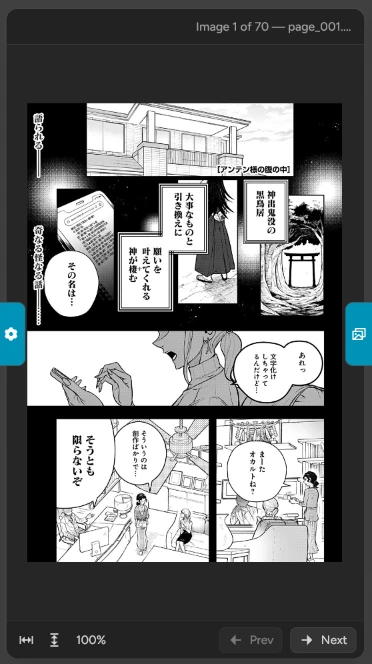
Mobile has been the weakest part of Torii for two years, and it is the change I am happiest to be writing about. The editor was cramped, every control was sized for a mouse, and drawing on a tablet ran at a few frames per second. There was no small fix for that - it needed the interface and the drawing engine rebuilt, which is most of what this release is.
You can now start a page on a phone and actually finish it there.
- Drawing runs at full speed. Every brush tool - paint, erase, inpaint and OCR masking - was rebuilding the canvas on every touch event instead of once per frame, queueing far more work than the screen could ever show. Measured on an iPad, drawing went from two or three frames per second to roughly fifty.
- Controls sized for fingers. Handles and gizmos scale up on touch devices, and the options bar has room to breathe instead of crowding the bottom of the screen.
- Gestures that understand intent. No tap delay, and a tap, a drag and a pinch are told apart properly rather than guessed at.
- Tooltips you can reach. Controls that relied on hover now explain themselves on tap.
- Copy and paste without a keyboard. Dedicated buttons in the text options bar, because there is no Ctrl+C on a phone.
- The keyboard stays out of the way. Opening it no longer resizes the editor or scrolls it out from under you mid-word.
- In the extension too. The full editor runs on Safari on iPhone and iPad, and on Firefox for Android.
More control over every text box
Edit mode gained the tools that were missing when you needed to fix more than one thing at a time.
- Multi-select. Select several text boxes at once and restyle, move or delete them together, with a redesigned options bar that appears alongside the selection.
- Copy and paste styling. Take the font, colour, stroke and spacing from one box and apply it to another in two clicks.
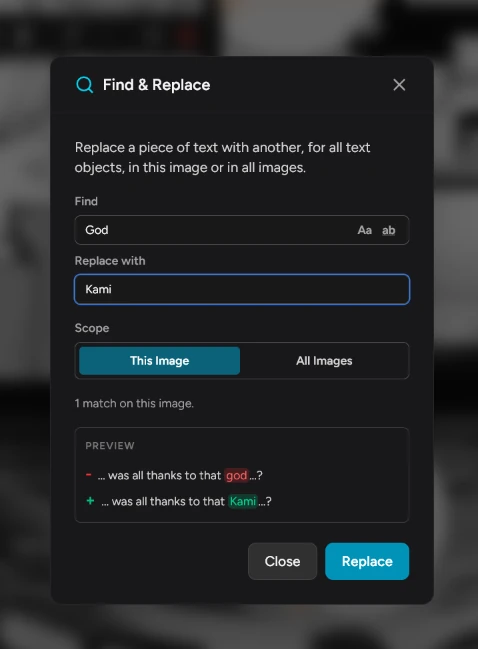
- Find and Replace. Search across every text box on an image, with match-case and whole-word options.
- True perspective warp. A real perspective transform joins the existing warp effects, along with a new Stretch mode - useful for sound effects that need to follow the art.
- Transparency paint. The paint tool can now subtract alpha instead of adding colour, letting you cut cleanly back to nothing.
- Image mode. Place an image into the canvas as its own object, then move, scale and rotate it like any other.
- Per-image undo and redo. Undo history is now tracked per image, so stepping back on one page no longer unwinds another, and there is a redo button to go with it.
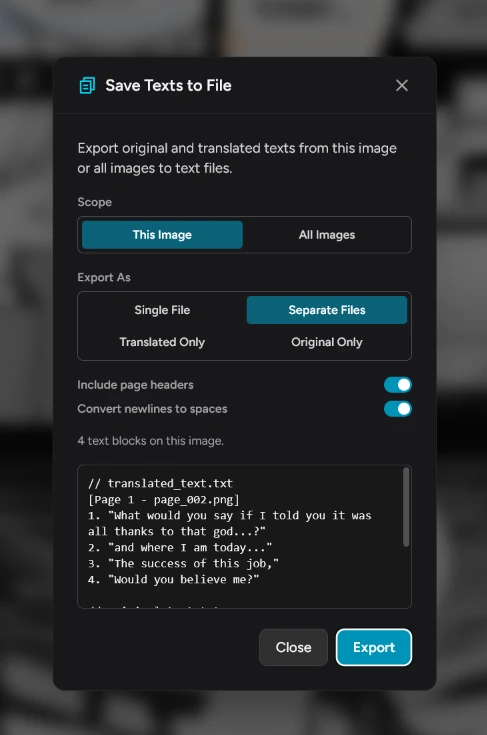
- Export the text itself. Pull the original and translated text out to files - one per image or a single combined file, either language on its own or both together.
Text that matches the server, exactly
The canvas rendering engine has been rewritten. Previously the editor drew text slightly differently from the server that produces your final output, which meant nudging a box into place on screen and finding it a few pixels off on export. The editor now reproduces the server's drawing logic precisely - correct baselines for every font, with none of the guesswork line-height scaling that used to paper over the difference.
- Better line breaking. Punctuation no longer strands itself on its own line or detaches from the word it belongs to - a particular problem in Spanish and French.
- Font swaps keep their shape. Changing a font now preserves the block's height by adjusting line spacing, instead of resizing the whole box underneath you.
- Smarter inpainting. Detection hints extend cleanup into strokes the detector missed, so stray marks around removed text no longer survive.
Long pages, at full speed, everywhere
A 30,000-pixel webtoon strip is about the hardest thing you can hand a browser canvas, and it is what a great deal of Torii's editing happens on. Every part of that path has now been measured on the devices people actually use, rather than guessed at from a desktop, and rebuilt around what the measurements said. Editing a page that tall runs at full frame rate on every browser Torii supports.
- The canvas only holds what you can see. The editor used to keep the whole page as one enormous drawing surface, so the cost of every frame grew with the length of the page. It now works through a window onto the image that follows you as you scroll, and a 60,000-pixel page costs no more per frame than a short one.
- Firefox on Android, fixed at the root. Dragging a text box ran at ten frames a second where Chrome managed sixty. The cause sat below Torii entirely: reading from a canvas taller than the graphics hardware can hold as a single texture moves the entire surface, however small the piece you asked for. The editor now keeps a small mirror of the visible slice and reads from that instead. Dragging, painting and scrolling a 60,000-pixel page all sit at sixty frames a second.
- Inpainting responds immediately. Lifting your finger used to take about a second before anything visibly happened. The mask was being scanned in full - 36 million pixels - to find a dab you had just made, and the cropped region took an unnecessary round trip through the graphics card on its way to the server. Both now touch only the area you actually painted.
- Brush strokes stay local. A stroke allocates only the area it covers, and undo records just the pixels that changed instead of a full-canvas copy per step - so a long page no longer costs a full-canvas buffer on every frame.
- Streaming downloads. Large exports write out as they go instead of being assembled in memory first, which removes the failures people hit on big batches.
None of this changes what Torii does - it is the same editor doing the same work. It simply stopped being the part you wait for.
See exactly what produced your translation
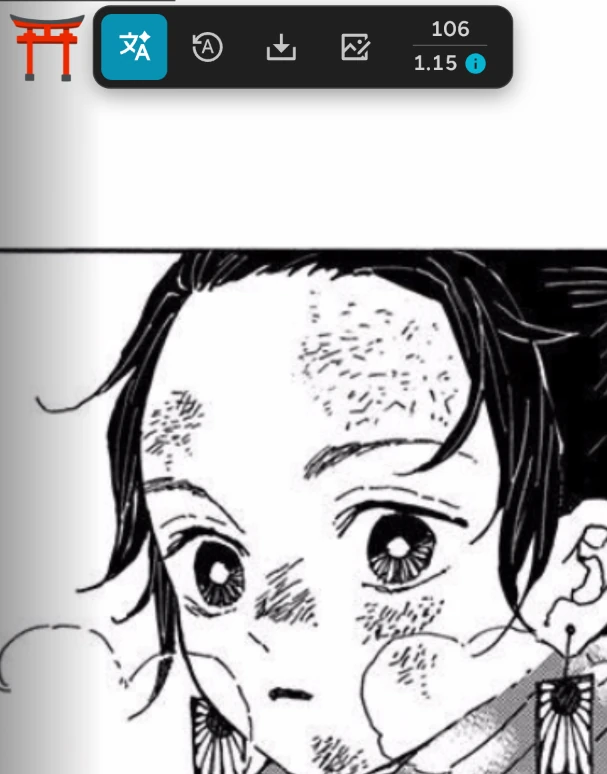
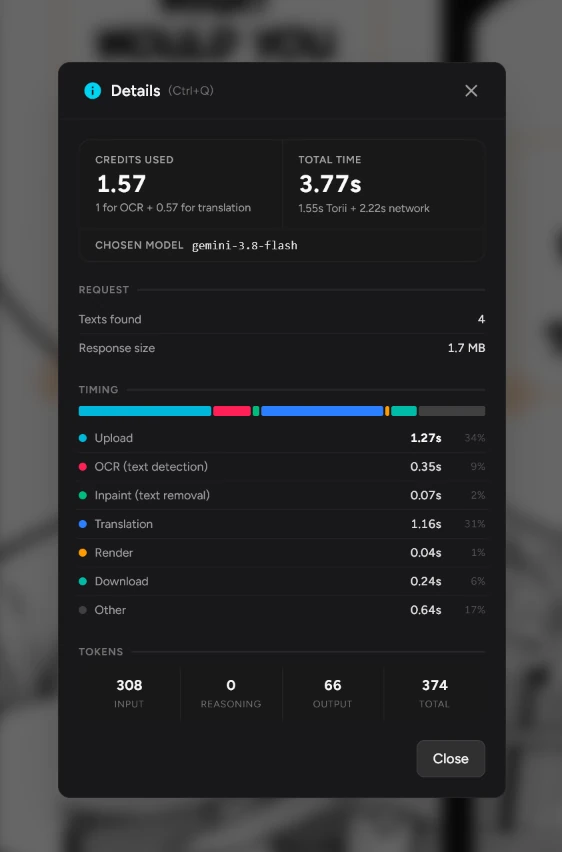
A new details panel opens from any translated image and shows the whole story behind it: which model ran, the reasoning it produced, a full credit breakdown, how long each stage took, and whether a fallback model had to step in. If a translation costs more than you expected, you can now see why.
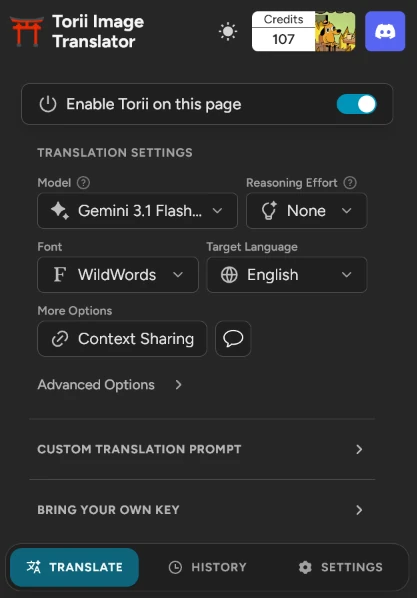
- New models. Gemini 3.8 Flash, Luna, Kimi and OneOCR have joined the lineup.
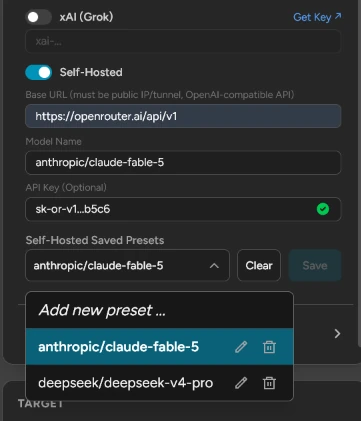
- Bring your own key, including self-hosted. Use your own provider account, or point Torii at a model running on your own machine with the new local presets.
- Cached translations are free. Re-translating something Torii has already seen now clearly reports zero credits, and the details panel shows what it originally cost.
Safari, Firefox and everything in between
Beyond the phone, the extension now behaves the same whichever browser it is running in. The Safari build has had a great deal of work behind the scenes and runs the full editor on Mac as well as iPhone and iPad. On Firefox, a canvas security restriction had been quietly breaking edit mode on certain sites - that is worked around now, so the editor opens everywhere it should.
Smaller things worth knowing
Scrubbable number inputs
Every slider now has a number field beside it that you can drag or type into for exact values.
Keyboard navigation
Arrow keys move between images and through dropdowns, in edit mode too.
More export formats
Save as a .torii project, a PDF, or a custom ZIP, with
consistent page ordering.
PSD with original text
Photoshop exports now include the original text as its own layer.
Skipped, not deleted
Text filtered out by bubble-only mode is marked skipped and can be brought back, rather than discarded.
Languages in their own names
The language picker now shows each language as its speakers write it.
Paste from clipboard
A paste button in the text options bar, for phones with no keyboard shortcut.
New payment options
Additional checkout methods and a reworked pricing page.
Drag to reorder
Reordering pages in the image browser works consistently with a mouse and with touch.
Thank you to everyone who reported a bug, asked for a feature, or sat through a beta build on a device I do not own. A great deal of this release came directly from those messages. As always, the feedback page and the Discord are the fastest ways to reach me.
- Selection editing now available!
- Edit mode has received a makeover.
- You can now select/highlight a word within a paragraph and change its styling separately, like making only that word bold, changing its font, changing its color, etc.
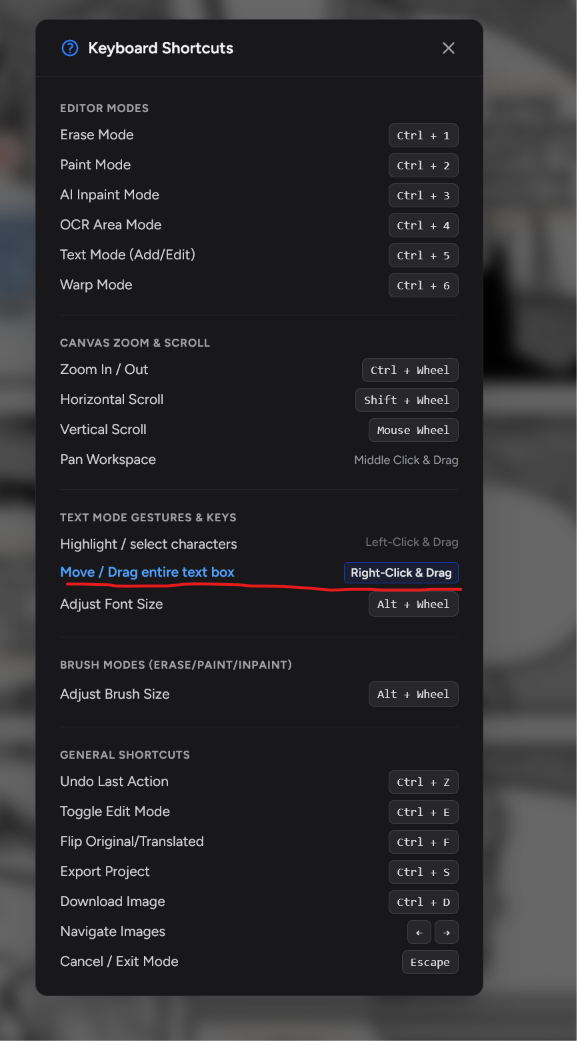
- To move text boxes, you now have to use the move handle or right-click & drag on desktop.
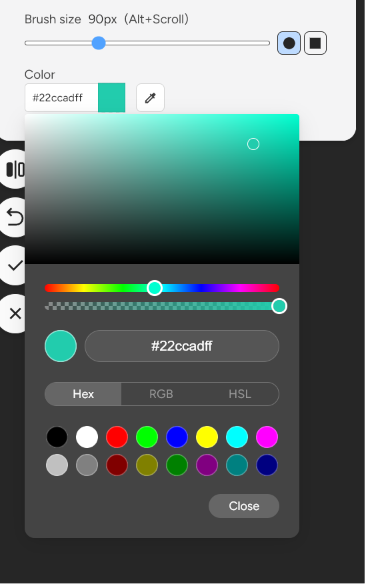
- The color pickers have also been improved overall, and an eyedropper has been added to all of them.
- Stroke Blur and Stroke Distance sliders have been added.
- A shortcuts popup has been added for easily checking them all ("?" next to the settings toggle in Edit mode)
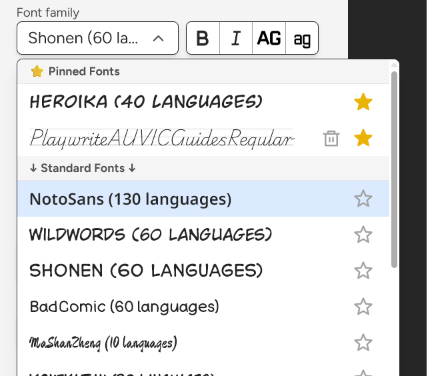
- A custom font dropdown has been added, allowing for pinning of your favorite fonts
- Canvas optimizations have been made for smoother operation when editing huge images, like super long manhwas.
- Torii's Safari extension is now available!
- You can use Torii on Safari on iPhones, iPads and Mac.
- Image fetching improvements!
- Torii is now able to access a greater variety of images on the web. Some websites make it super difficult to access their images (even extensions are powerless) but I've managed to find a way to access them all! You should no longer see the "Failed to process image" error message.
- Replaced Gemini 3.5 Flash with latest Gemini 3.6 Flash model
- It's cheaper and faster and should be better for translations.
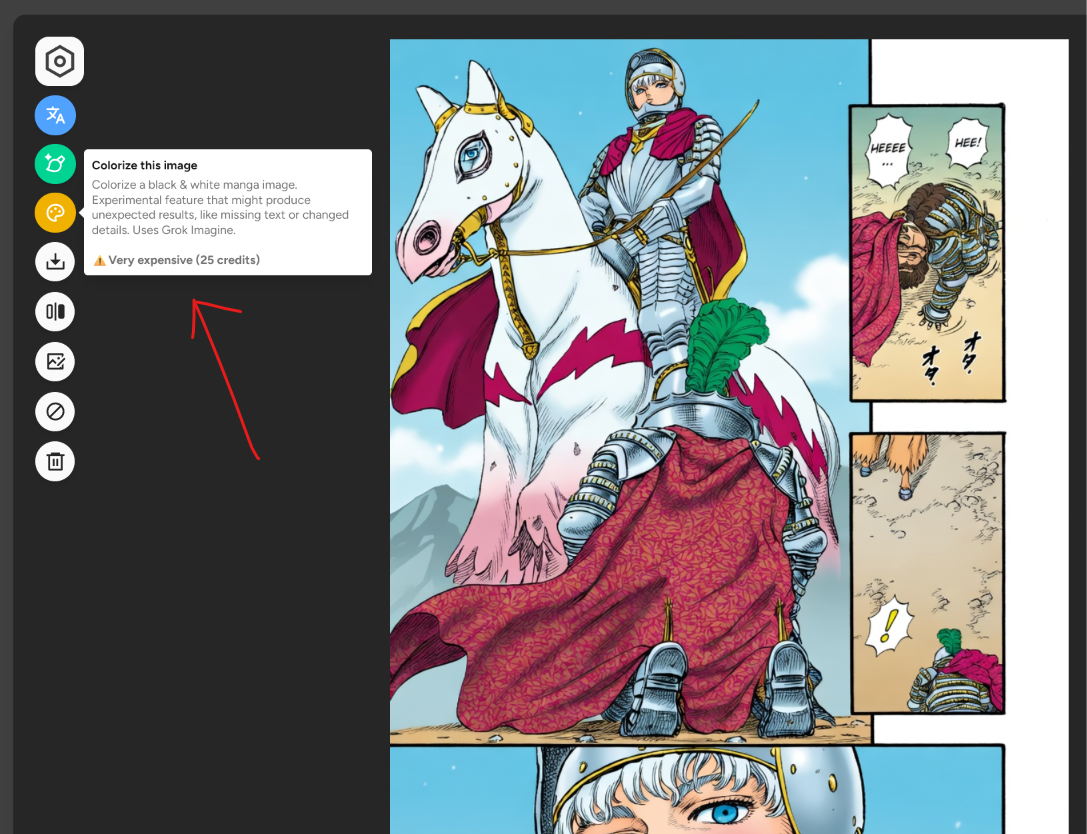
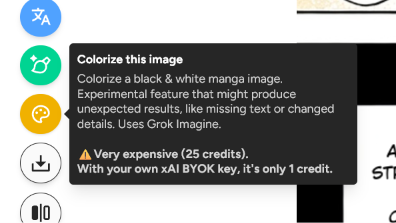
- Image Colorization added to website!
- Using Grok Imagine, Torii can now colorize your black & white manga images, and the outputs are super nice.
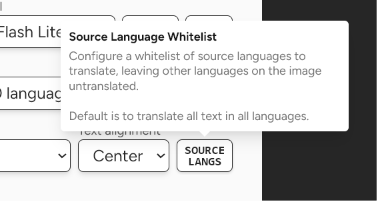
- Source Language whitelist option
- Used for mixed source language images, where you only want to translate the text from a given language. For example, if you have an image with both English and Spanish text, you can use this option to only translate the English text.
- Very niche and optional feature, but requested by some users. Only available on website.
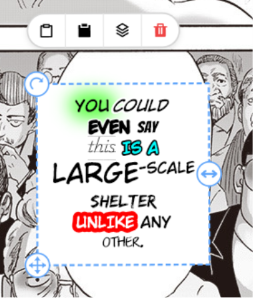
- Oriented text rendering now supported!
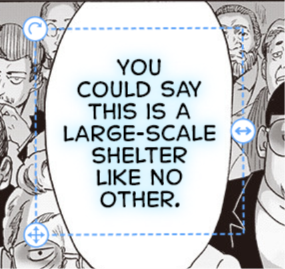
- You might have noticed that Torii always renders translations horizontally no matter the angle of the original text. This has now been improved. The translations will now rotate to match the original text. For manga readers this might not matter much, but for documents where there's lots of angled text, it's a massive improvement, since before it was unreadable.
- Vertical text now supported!
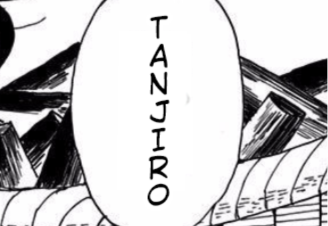
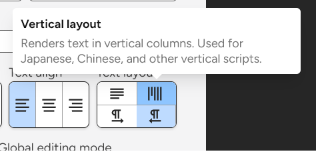
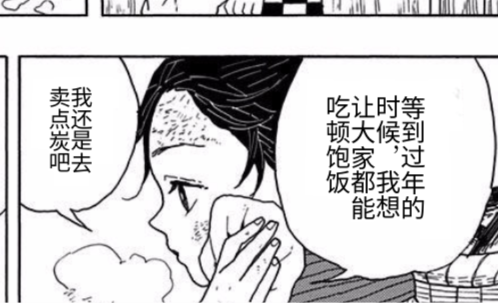
- Torii now allows rendering of vertical text (I don't mean angled or rotated, but vertically drawn characters, like japanese or chinese written top-to-bottom)
- This is most useful for Chinese users who translate from vertical Japanese text (like most manga) to Chinese. Torii will now output vertical chinese, which fits the original bounds way better.
- This is also useful for non-CJK languages - you might want to fit an English word in a tight bubble, like a sound effect, vertically. See screenshots below.
- Warp Mode added to Edit mode!
- This new mode allows you to apply warp transformatons, similar to Photoshop, to bulge or squish or stretch text.
- It was requested by a user who needs it for SFX in his images, to make the translations look even nicer and more custom.
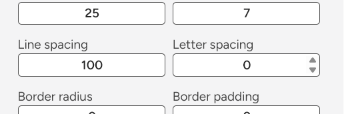
- Line spacing and letter spacing have been added to Edit mode.
- This allows you to control the spacing between lines or letters, which can stretch or shrink the text box, again allowing for more custom controls, similar to Photoshop.
- Custom font uploads in Edit mode now available for both extension and website!
- The website has had this feature for a month now, but the extension has been lagging behind.
- All of these features above are now available in the extension's edit mode as well.
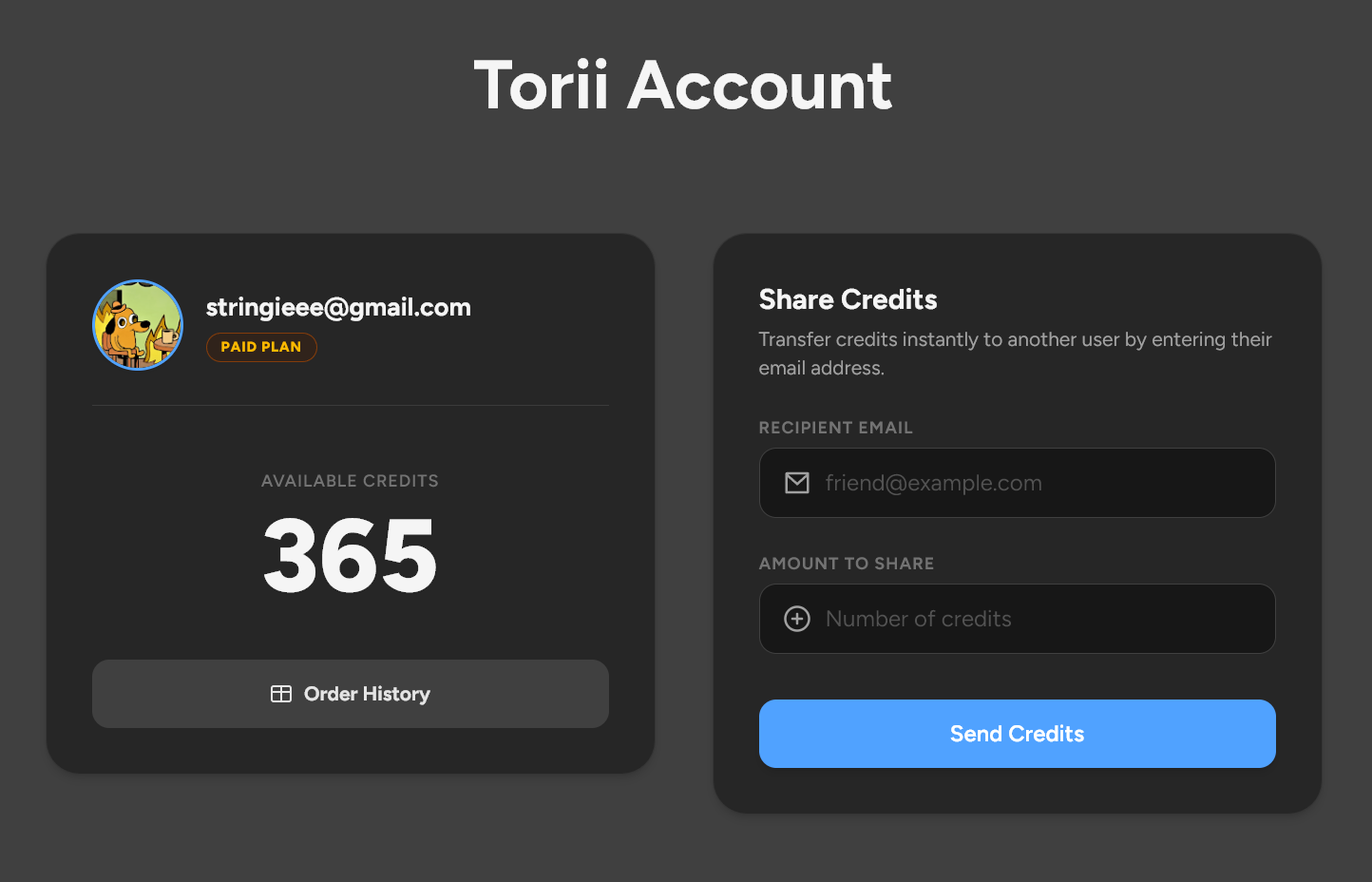
- Credits sharing has been added!
- You can now share your credits with friends, team members, or just anyone with a Torii account.
- Just go to my account and you will see the new credits sharing section.
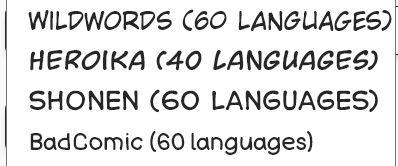
- Added 2 new fonts - Shonen and Heroika!
- They support a large number of languages (added due to Mongolian interest) and look amazing. I've been using them more than WildWords
- Torii PWA now supported!
- On the Torii translate page you can now install Torii as a PWA! This intalls it to your device as its own separate app without having to open your browser. The install button is on Chromium browsers and is located in the search bar top right.
- Uploaded custom fonts now persist across sessions!
- They are website only (not extension) and are stored in your browser.
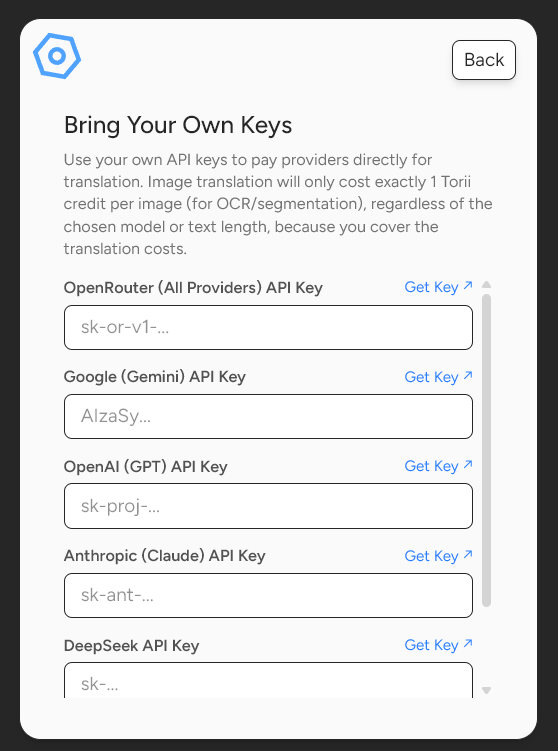
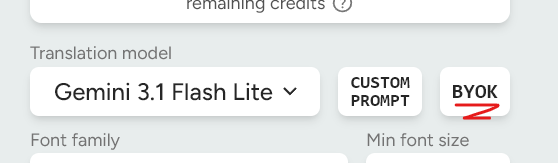
- Bring Your Own Key (BYOK) is here!
- You can now configure and use your own API keys for top translation providers: OpenAI, OpenRouter, Google Gemini, Anthropic Claude, DeepSeek, and xAI Grok.
- Translating using your own accounts and keys drastically reduces credit usage: image translations now cost a flat rate of 1 credit (for OCR/processing/server infrastructure) regardless of text length or model!
- This also includes the Manual OCR requests which use Gemini 3 Flash.
- Developers can also take advantage of the new BYOK feature via our updated API! Just pass your
key via the
x-byok-<provider>parameter (e.g.x-byok-openai). The API interactive documentation has been updated with a BYOK Provider dropdown. - Added Self-Hosted Mode!
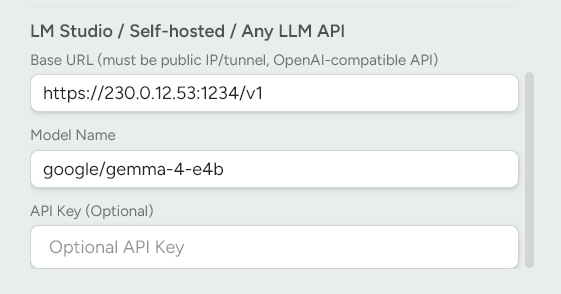
- You can now configure and use your own LLM API hosted on your own machine! You just need to make it publicly accessible on the internet and a good PC to host it. A free software like LM Studio combined with Cloudflared or Ngrok makes it very easy. This way your translations will be *actually* free.
- Added GlobalGlobal Editing!
- Works just like Global Editing from the previous update, but now it edits all images! Meaning you can upload 500 images to the Torii Translate page, and easily edit all of them at the same time - fixing the text size or color or anything!
- Added Claude Sonnet 4.6 to models list
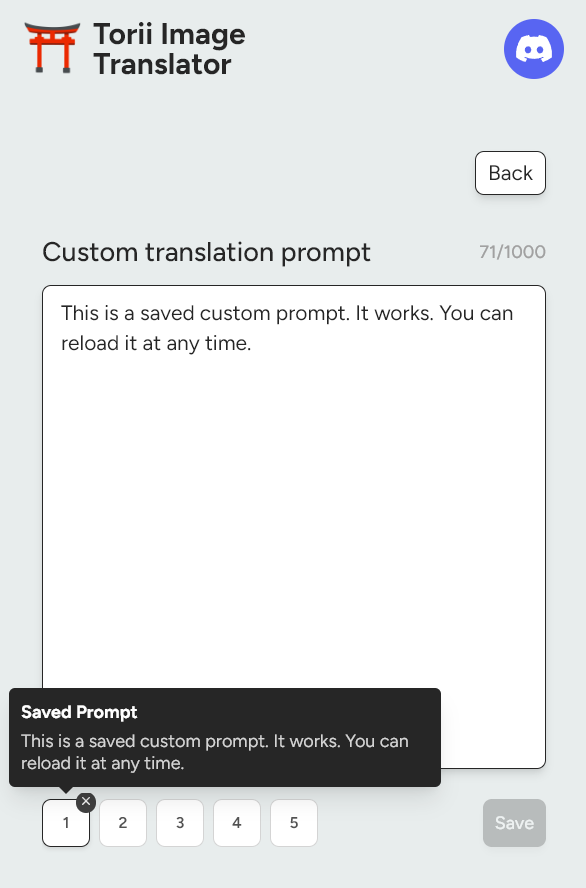
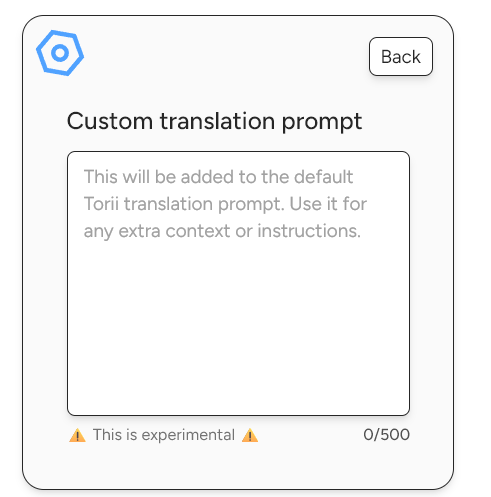
- Added the ability to save custom prompts!
- Also increased custom prompt length to 1000 characters, up from 500.
- Added the ability to see the original image after translation without auto mode re-translating the image and hiding it from you (useful for language learners who want to switch to the original image after reading the translation).
- The "Translate Image" keyboard shortcut (Alt+Shift+Z (might be unset, check bindings in extension menu)) and context-menu command (right-click or Alt+Shift+D) now serves as a dual command which also shows the original image if clicked on a translated image. It used to just do nothing if the image was already translated.
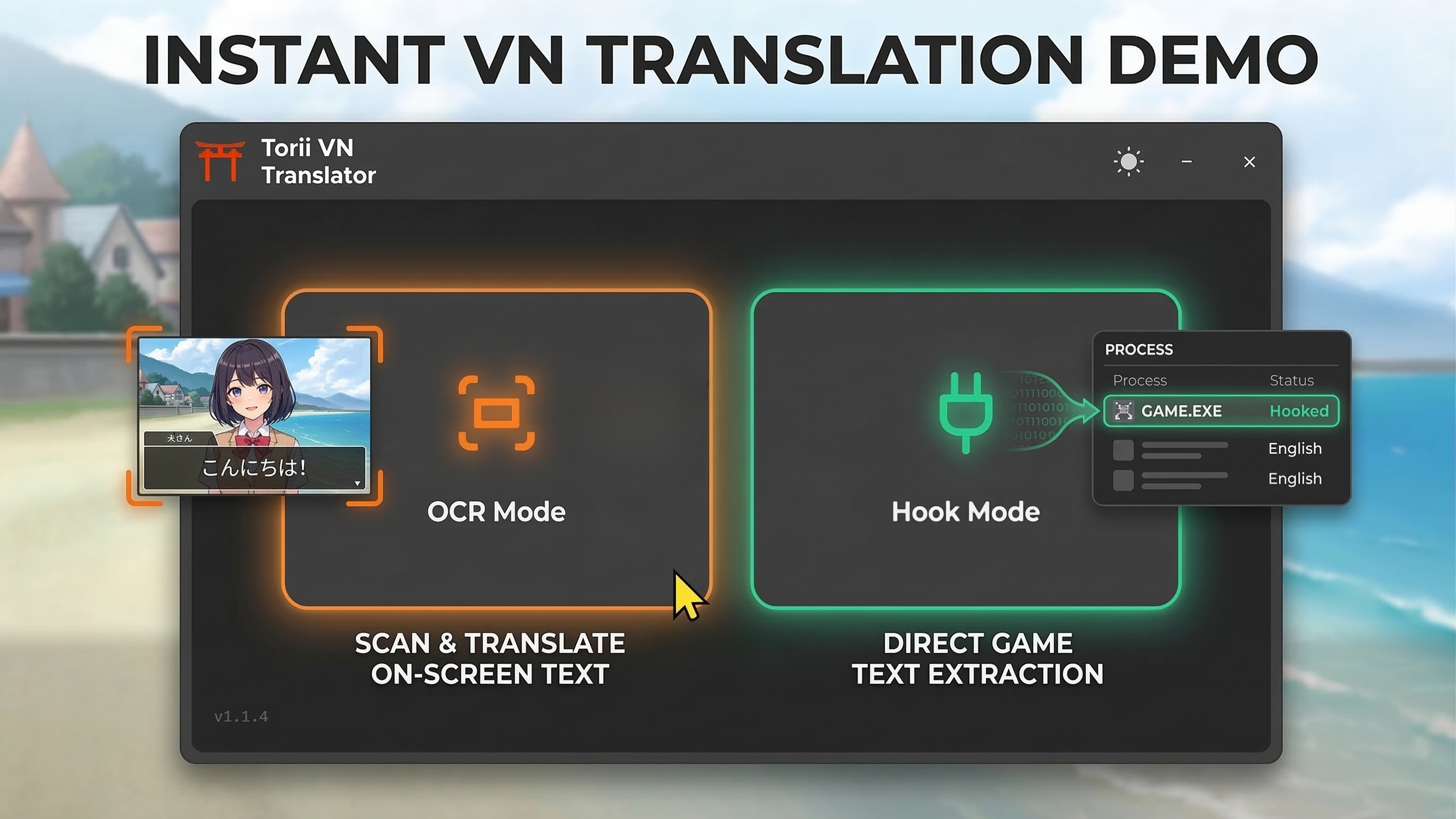
- Created a new Torii desktop app - Torii Visual Novel Translator!
- You can use the same Torii account and the same credits to translate your favorite visual novels locally on your computer.
- Check it out Torii Visual Novel Translator
- Added the "Global Editing" option to website and extension Edit mode.
- This allows you to edit all the text boxes at once instead of one by one.
- Added bubbles_only button to the extension.
- This allows you to only translate the text in speech bubbles, without translating the annoying background text or sound effects, which has been a requested feature for quite some time now ...
- It works by running a separate bubble detection algorithm and then filters the text boxes based on that information. It's experimental but I hope it works well for most images. If you notice that some text in your image isn't being translated, try disabling the bubbles_only button and translate again.
- Removed the "Gemini 3 Pro" model from the list of models.
- The model disappointed me and annoyed me because it was unpredictable in its cost and translation speed. It could sometimes cost up to 30 credits per image and take 1 minute to translate. This is because it's a reasoning model and it can hallucinate and start thinking for way too long. This is not good for a translator like Torii, where reasoning models would be overkill for the simple taks of translation. Use Gemini 3 Flash, as it's the best model for the job, and cheap.
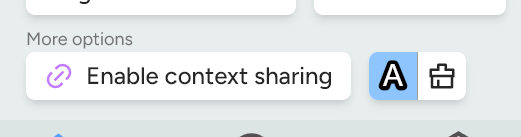
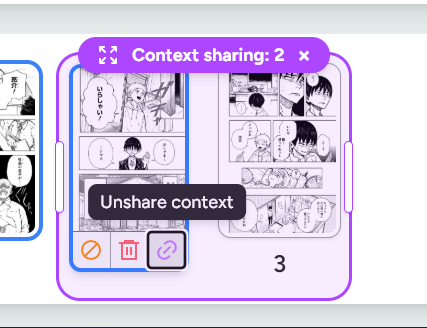
- Big feature - context sharing.
- Works best with smarter models. I recommend Gemini 3 Flash.
- The context sharing feature allows past translations to share their context with future translations, improving consistency and quality of the translations.
- This feature costs more credits per image (up to 1 or 2 more credits per image, depending on selected model).
- Enabling this should result in fewer pronoun and name mistakes.
- It works by passing a summary of each past page over to the next translation, in a smart way - this explains the increase in credits cost since more tokens are used for translation.
- On the website you have more granular control of the context span. On the extension you can only enable or disable the feature, which maintains a running context for the current page and all translations in it, which resets when the page is refreshed or website changed.
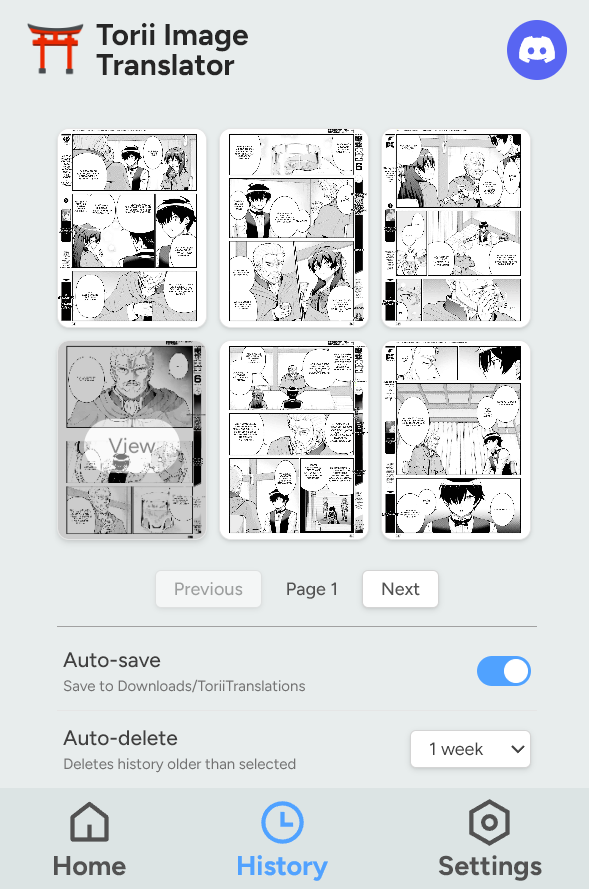
- Added auto-save feature to the extension's History tab.
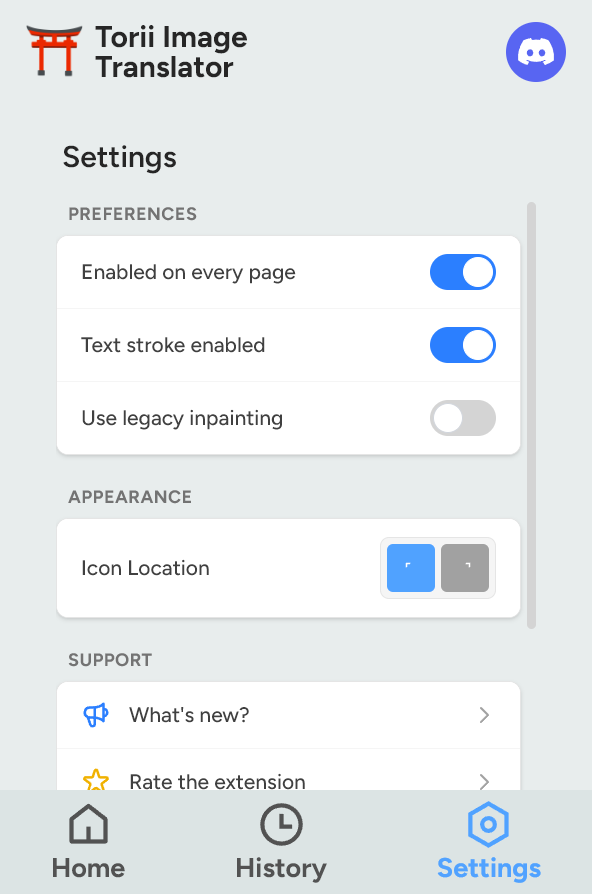
- Improved Settings tab's UI.
- The auto-save feature works by saving all translated images, both the already cached ones and all future ones.
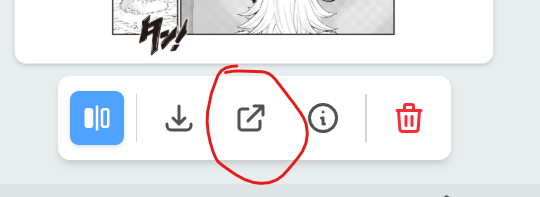
- Also added a "View in new page" button to the Detailed Image view in the History tab. This allows you to see the full sized image.
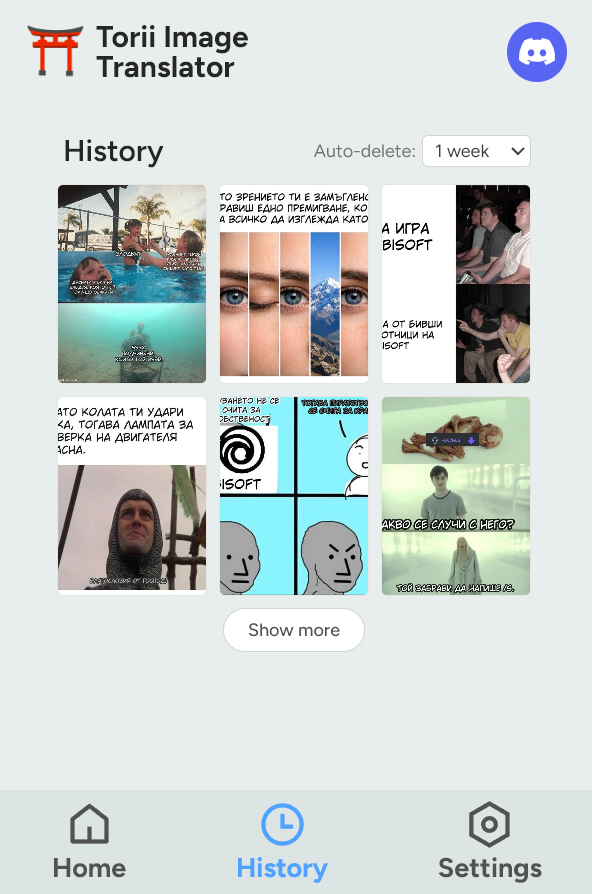
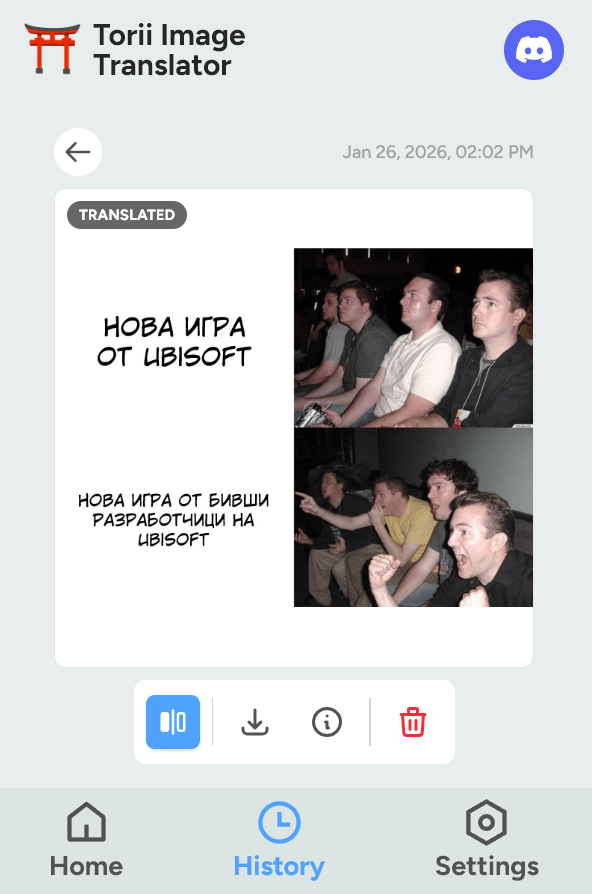
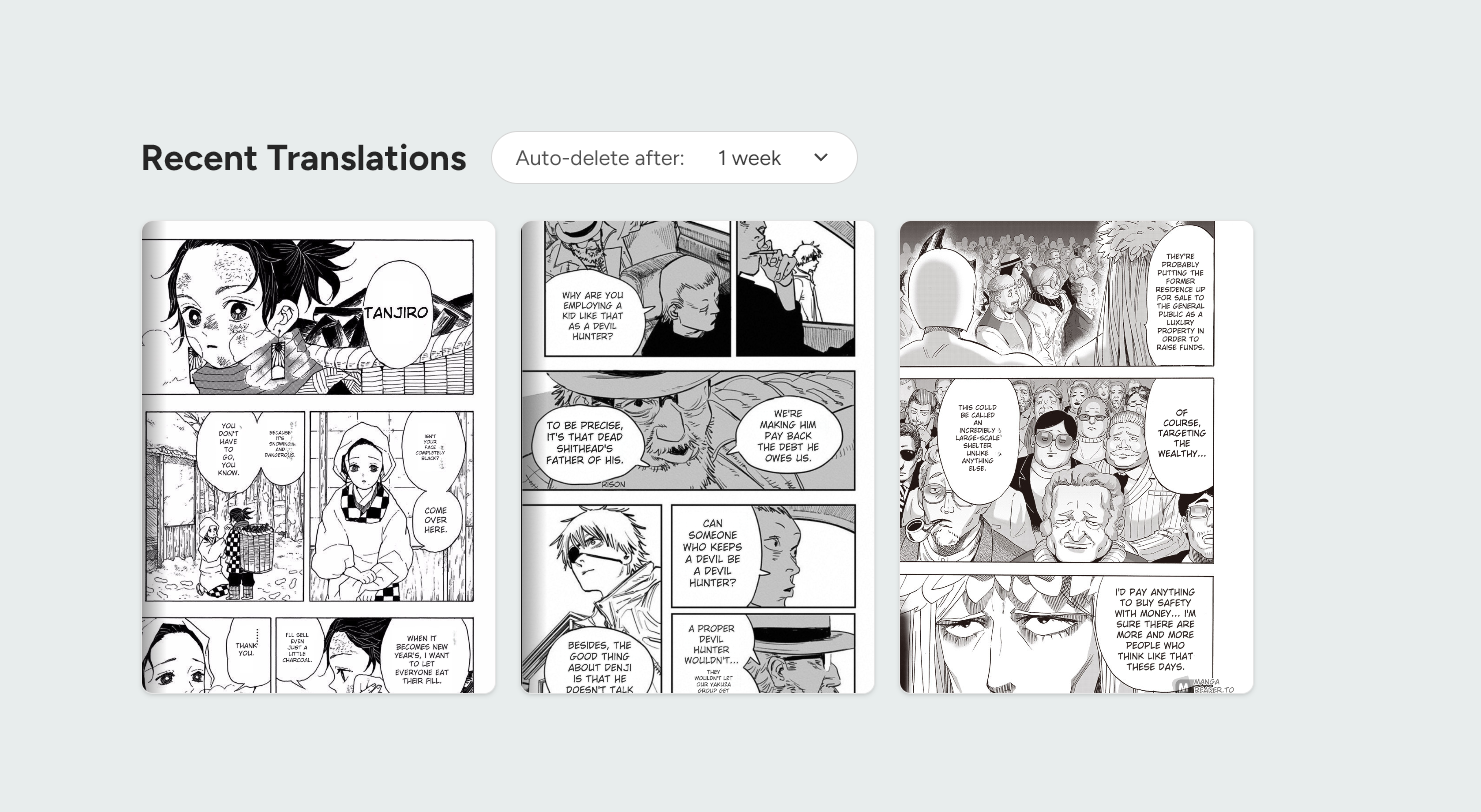
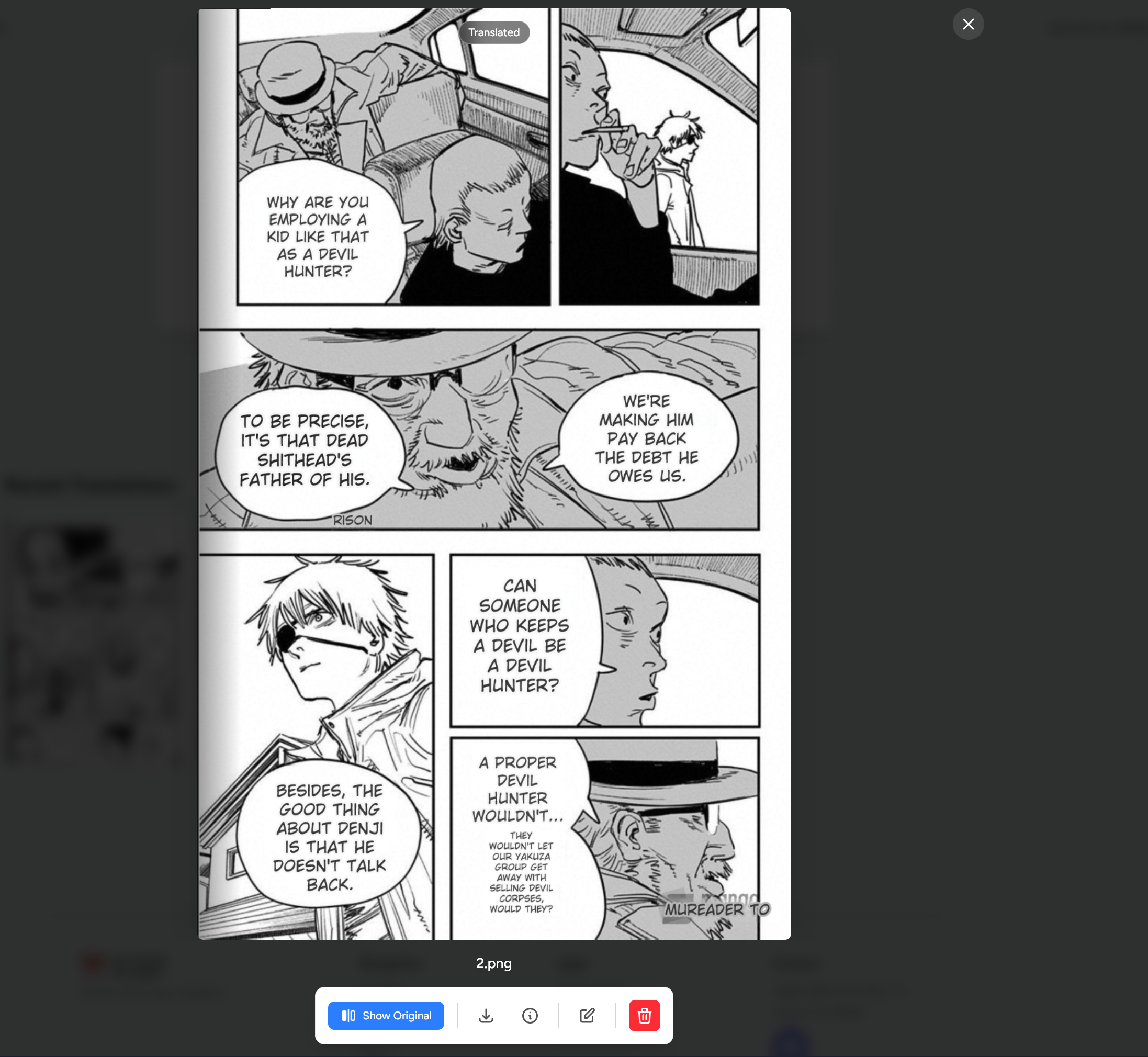
- Added translation history to the website and extension.
- Added translation cache to the website and extension.
- Removed Feedback page (which no one even used) from extension and replaced it with Translation History page. See screenshots below. The website history is located at the bottom of the upload/translate page.
- Added text alignment option to the website and extension.
- Torii no longer stores your images on our servers. All storage is now done on your device, locally. This is a major security and privacy improvement.
- Images used to be stored on our servers for 3 days before being automatically deleted. This was used so that it wouldn't cost you credits if you translated the same image, and more importantly, it was used during Edit mode, so that the original, translated and inpainted images could be used and displayed for you to control the translation result to your liking.
- Everything still works just like before. This also means that you can now choose how long images can stay until deleted, from 1 day to never.
- This also means you can have a history of your translations, so that you can easily access them, edit them, download them, whenever you want.
- Added custom prompts to the website and extension translation settings.
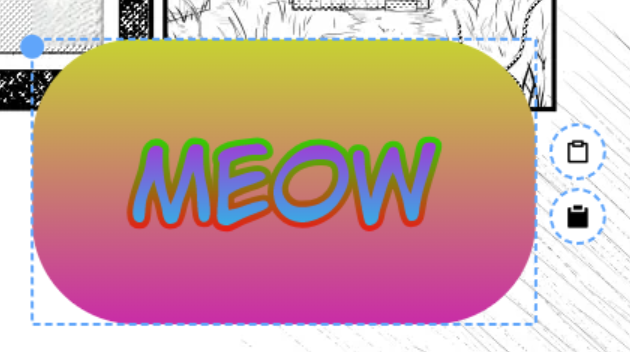
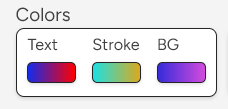
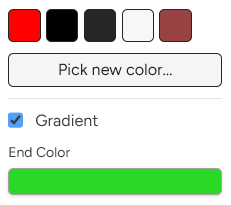
- Added color gradients to the website and extension Edit modes.
- Added bold and italics options for text to the website and extension Edit modes.
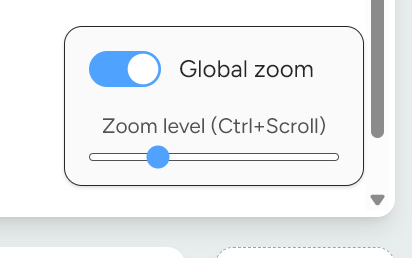
- Added Global zoom level to the website translate workspace.
- Added the ability to reorder images and to add new images to the website translate workspace.
- Added Clean button next to Translate button in the website translate workspace. This will remove all text from the images.
- Improved the font size sliders greatly.
- Added panning with middle mouse button to the website and extension Edit modes.
- Added the ability to use the scroll wheel to increase the font size of the currently selected text box, by holding down the alt key.

- Added new mode to the Edit Mode - "Manual OCR".
- Added Grok 4 Fast to the model list.
- Replaced the Gemini models with a single latest Gemini 2.5 Flash model.
- Removed unused GPT-4.1 model and only kept GPT-5.
- Updated Claude model to 4.5
- Added 1 new font - Mogul Irina.
- With the new OCR mode, you can now manually select text that you want Torii to re-detect and re-translate. This is especially useful if the text was not detected correctly initially and something went wrong, giving you extra power when making perfectly translate pages.
- Fixed an issue where typing in a textbox would constanly move the text box up and down. Now it should feel more intuitive to type during Edit mode inside the textboxes.
- I removed all of the Gemini model options and replaced them with the new Gemini 2.5 Flash model. The image context model variants were barely used by users and I don't think they're worth the extra cost, since there was barely a noticeable difference in the translation output.
- Added 2 new fonts - Hayah and Itim.
- Hayah is for arabic languages.
- Itim is for Thai languages.
- Also added a sign out button in the extension settings, at long last 😀
- Added PDF downloading of all translated images as an option instead of just ZIPs.
- Fixed a bunch of bugs with the translate and pricing pages
- GPT-5 added as a translation model and a bunch of other small updates!
- GPT-5 is cheaper and hopefully better than 4o. I'm keeping 4.1 since I saw lots of people liked using it.
- Deepseek updated to use version 0324
- Claude has been updated from 3.5 to 4.0 Sonnet
- You can now press Ctrl+S to save your Torii project on the website.
- You can now press Ctrl+X to view the original/translated image during edit mode. Also a dedicated button for it.
- Torii can now handle png images with transparency. It used to remove the alpha channel during processing, but now it works as expected.
- The zoom level when uploading to the website is now more consistent, showing the entire image within the canvas by default.
- PDF files maintain their original filename during download on the website
- New option in the 'Settings' page for the extension - you can set which corner the Torii icon appears on
- New command for the extension - repeat previous screen crop - useful when you want to crop the same area again without selecting it with your mouse, such as when reading manga. You need to set the shortcut yourself from the extensions page. Useful when no other translation works and only screencrop is available.
- You can now edit any image, not just whatever you have translated with the extension. This is accessed from the Torii menu or the right-click menu.
- Added undo functionality to edit mode! You can now press the undo button or press Ctrl+Z to undo changes.
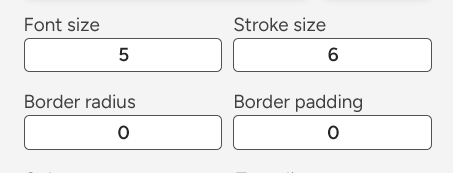
- Added 2 new sliders to edit mode - padding and border radius - for more control over the look of text bubbles.
- Added the rotation ability to the extension's edit mode - you can now rotate text to any angle in the extension as well.
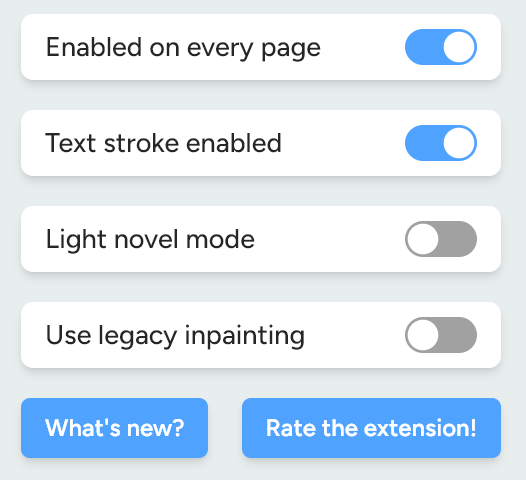
- Added 2 new options in the Settings page of the extension popup - Light novel mode and Legacy inpaint mode - One is primarily for reading all of the text in paragraphs on top of the entire image (useful for light novels) and the other is used if you prefer the old inpainting that Torii used, non GPU-based.
- Added the ability to upload PDFs to Torii on the website. They get converted to images so Torii can read from them and translate them.
- Added the ability to export/import Torii projects. This is useful if you want to save your work and come back to it later. Only available on the website. The button is near the top right where the "X" is.
- You can also now paste images into the upload field on the Torii website for a quick translation instead of having to save the image first using some other software and then upload it to Torii.
- A bunch of small bugfixes.

- Inpainting is now available! Torii now uses GPUs to inpaint images.
- Inpainting is the process of using AI models to fill in or change parts of an image. For Torii's use case, it's used to remove the old text before drawing the translated texts on top. Until now, Torii used a legacy CPU model to do this and you've probably noticed how it sometimes smudges the text bubbles or the background. More sophisticated AI models can do this much better, and I added a GPU to my server to do just that!
- Inpainting is also available not just as automatic text removal during translation, but also as a manual option, accessed from the "Edit" feature. See the images below.
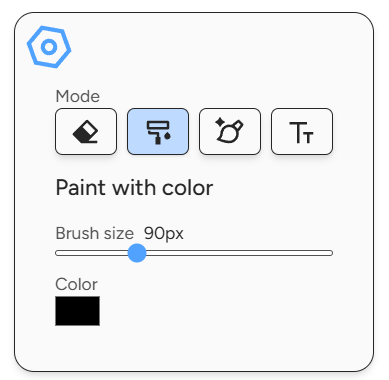
- Not only inpainting, but also regular painting with colors is now available. This is useful if you want to quickly draw over the images with a brush of any color. This is also available in the "Edit" feature and both options are super useful for professinal scanlation.
- 2 new fonts were added at the request of users - Edo (a brush stroke font), for English only, and RIDIBatang (a serif font), for many languages, but mostly for Korean.
- Claude 3.5 Sonnet was added as a new translation model.
- You can now hold ctrl+scroll to zoom in/out in the edit mode.
- Added a new toggle border button in the edit add text mode, for a border around the text box.
- Torii was fixed for Pixiv and many other sites where it was giving errors.
- Check out the screenshots/gifs below ⬇️
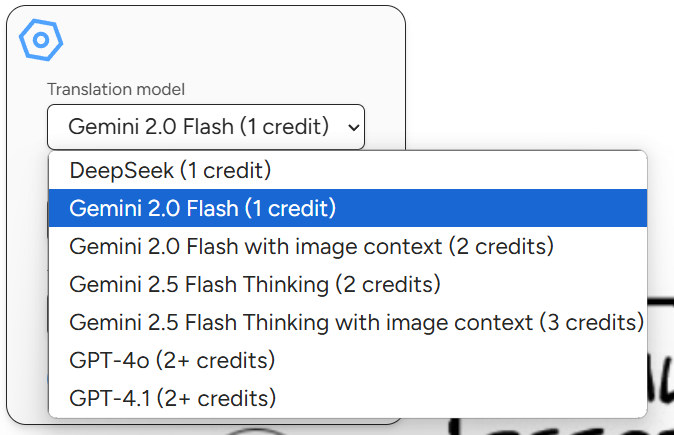
- New translation models added - Gemini Flash 2.5 Thinking and GPT-4.1!
- Both models were released just a week ago, so they should be state of the art. Gemini Flash 2.5 is the interesting one because it's a reasoning model - meaning it thinks for a little bit before giving an answer. GPT-4.1 is slightly cheaper than 4o and maybe slightly faster, while Gemini 2.5 is slightly more expensive than 2.0 since it spends more resources while thinking about the answer. Both models are still experimental, but I hope they perform well so I can keep them for Torii. Please let me know how they perform if you decide to test them.
- I've also experimented with image context being added to the prompt for the 2 Gemini models. You should see those options as well. Basically, I'm providing the original image to Gemini so it can use it as context, just as you would while reading your manga for example, to see if it's going to perform better at translations. I've tested it a bit and I was happy with the results so I decided to add it. Both 2.0 and 2.5 have this variation, but it costs +1 credit on top, since the image costs quite a bit of extra tokens. Play around with these and tell me how it goes!
- I've fixed a bunch of bugs and made some more UI improvements in the Translate page, as well as the extensions:
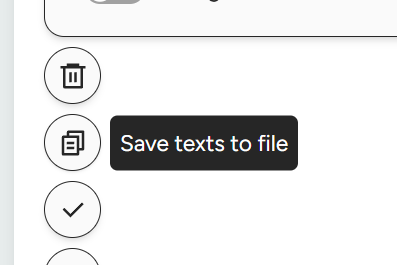
- You can now save the translated texts from Torii into a .txt file with a single button click.
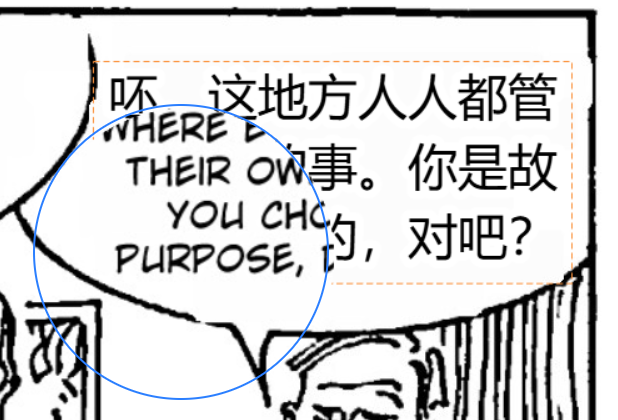
- You can now zoom into your image with a nice slider.
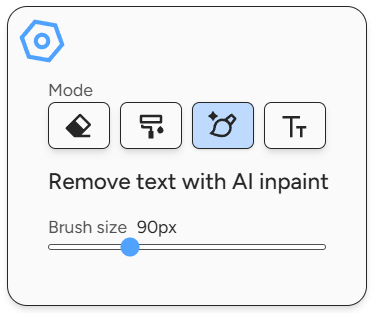
- You can now select any brush size with a nice slider for erasing.
- You can now copy both original text and translated text to the clipboard. The buttons appear next to the text box in the edit page.
- Erasing now works just like before - you can erase both the text and the background at the same time, making it more convenient, instead of first removing the text and then erasing just the inpainted background.
- Split Chinese language into two - simplified and traditional.
- See all changes in the screenshots below ⬇️
- Complete UI redesign and brand new "Editing" feature!
- Both the website and the extension popup now have a new and more professional, modern design. I hope you like it. I've put a lot of effort particularly into the Translate page so go and check it out!
- Perhaps the biggest change is the new and improved "Editing" feature! You can now actually properly edit the translated texts in your images, allowing for full control, instead of just erasing or adding new text.
- WildWords font is also now finally available to edit with.
- Go check it out in the new Features section of the landing page, or check out the new demo video at the top.
- I hope you guys don't encounter any bugs, but if you do, please let me know and I'll fix them immediately!
- New feature! Adding ("Editing") text in images after translation!
- This feature is available under the same "erase" button from before, now called "edit". Check out the image and gif to see it in action!
- Many users wanted a way to edit the text after translation, because sometimes the translation needs a small change to make it sound better. Unfortunately, you can't edit the text which appears in the image because it's literally a part of the pixels, but if you combine my erase feature from the last update and this feature, you're basically doing the same thing!
- First you erase any unwanted text and then you add the correct text you wanted. You can then download the perfect edited image. This update is basically an extension of the last "erase" update and makes Torii a very flexible tool for getting the right translated image.
- This allows you to quickly get the image you want, without going to Photoshop to fix it.
- I've also made improvements for how this gets handled on mobile and should feel more natural now.
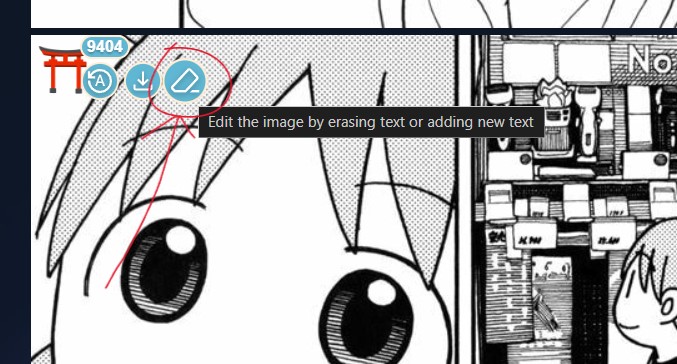
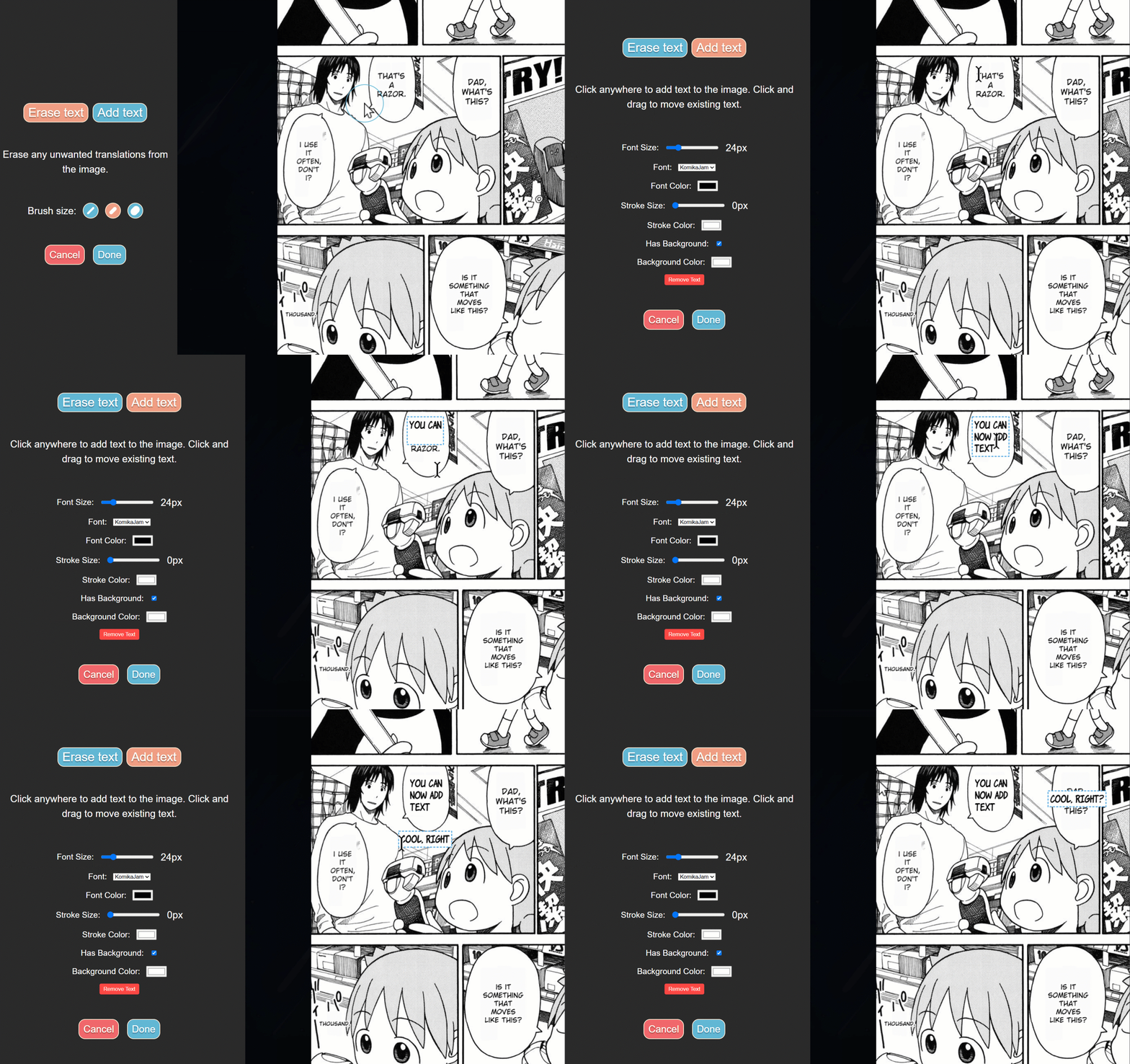
- New translation model! Gemini-2.0-Flash is here!
- Gemini was released by Google yesterday, and Torii is first to have it :3
- After a little bit of testing, I've found that this model is really good, really cheap and fast.
- For some translations to me it seemed like it's better than DeepSeek and GPT4o even!
- I've only tested it on my native language so please, compare it to DeepSeek and decide for yourself which one your prefer.
- It's also about 30% faster than them! Which is really important for you all.
- It will cost 1 credit per image, just like DeepSeek.
- Please try it out and tell me how it does for your translations.
- Added the erase feature to the context menu!
- A user requested I add it to the right-click menu and to the "ALT + SHIFT + D" shortcut menu.
- unfortunately, Chrome doesn't allow more than 4 named shortcuts for some reason, so if you want the erase feature to have its own keyboard shortcut, you need to go to the browser's extension menu, find Torii, and create your own shortcut for the erase feature. The other shortcuts are the same as before.
- This is a minor update which most people won't use but I thought I would let you guys know. It's for people who either like shortcuts or don't use the Torii icon to translate the images.
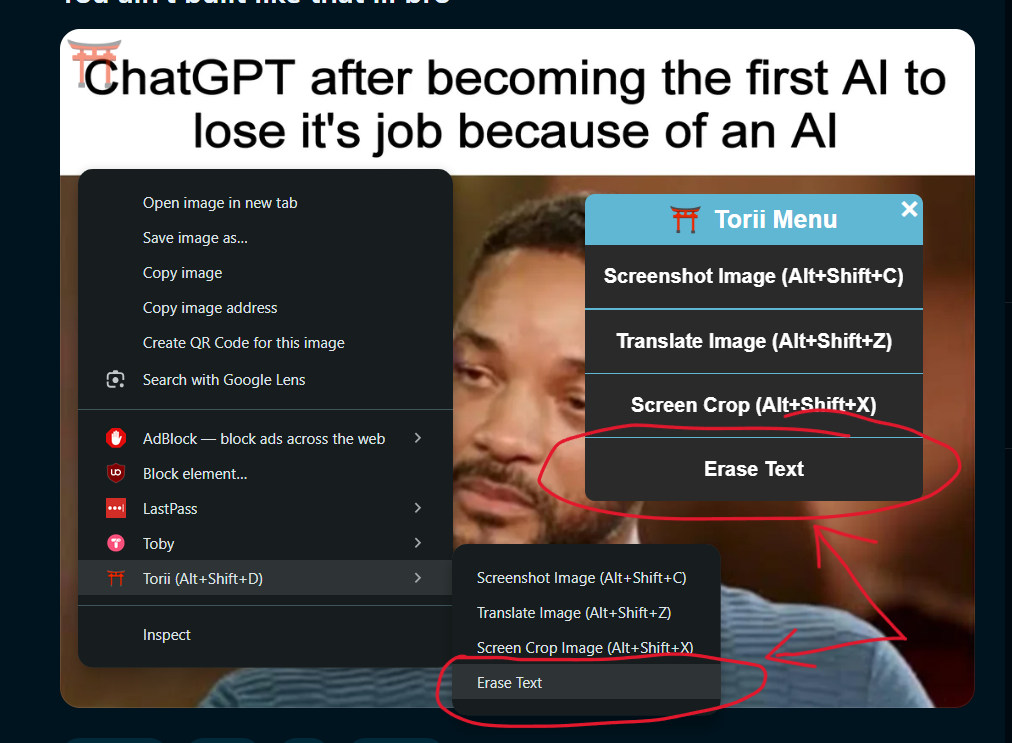
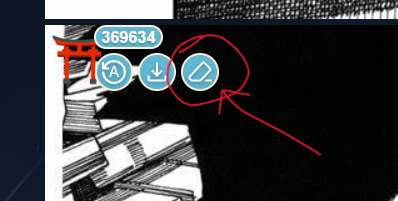
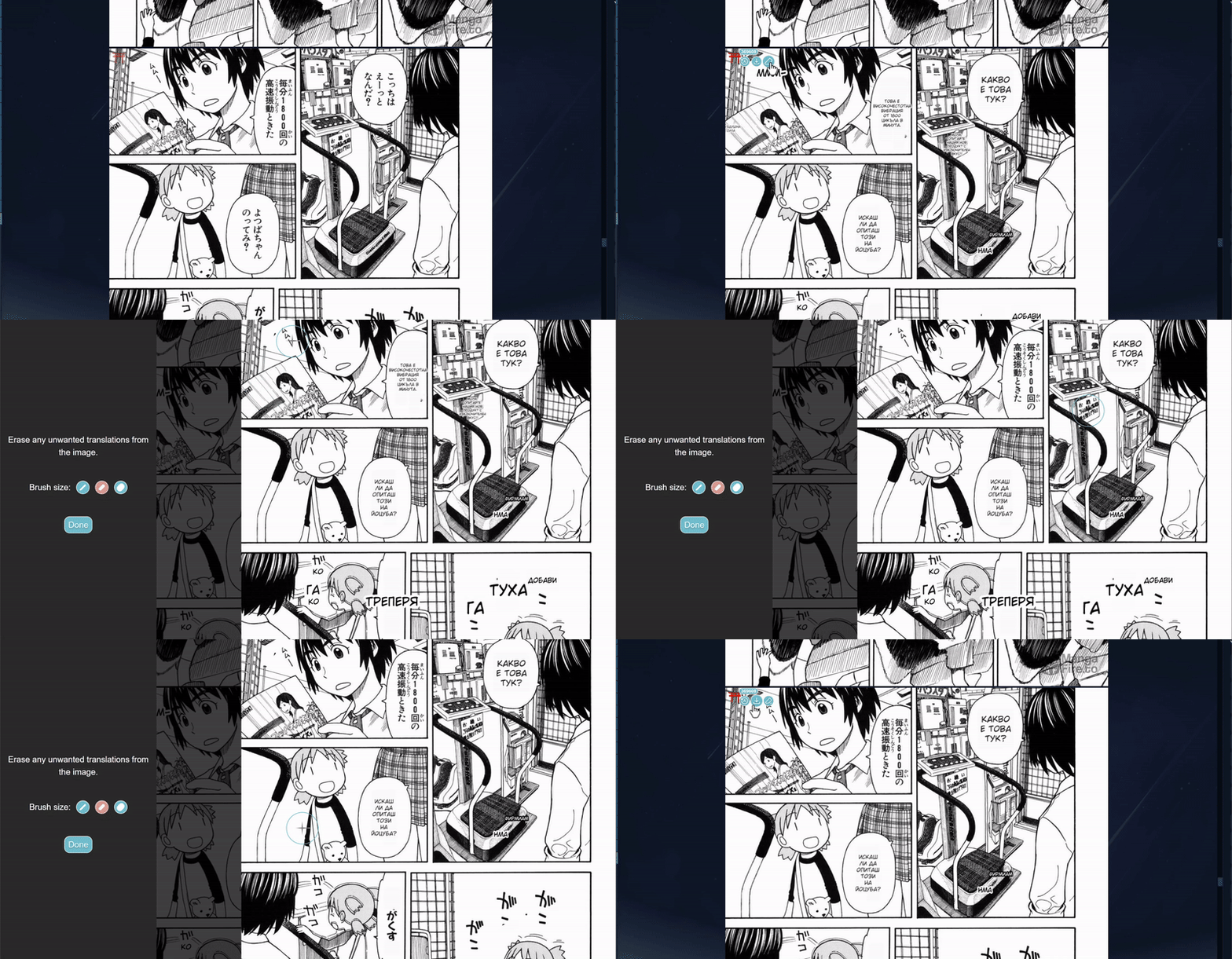
- New feature! You can now erase any translations you don't want to see from your translated image.
- Many users have been annoyed by how often sound effects also get translated into big annoying words, instead of only the text bubbles. This makes the reading experience slightly worse and these users have asked that I find a way to remove these bad translations or to allow the user to remove them by editing the final image.
- First I tried telling GPT-4 to just not translate these, but it's having a hard time deciding which text is good and which is bad, so it wasn't worth it.
- There was also an option to send text bubbles as overlaid images, instead of the entire image all at once pre-rendered, but this turned out to be super buggy and again not worth it.
- I finally came up with a decent approach - you can just erase any text you don't want to see, as if in Photoshop, and the original image will appear underneath!
- I think it turned out pretty good, so please test it yourself. Check the images and GIFs next to this post to see what it looks like!
- This feature is also available on the website's Translate page. Just translate any image and it will appear on the right next to the other options.
- I know many people probably don't care, but some people were really bothered so I wanted to add it. It should also work well on mobile, although maybe a little bit less efficient than using a mouse.
- Added back GPT-4o as a translation model!
- Some users complained that they definitely want GPT-4 back because they prefer its translation quality over DeepSeek.
- Depending on the text length, the cost can range from 2 to 6 credits with GPT-4, which is it's one disadvantage! On average I've noticed it would be around 2 or 3 per image.
- Last but not least, I think I've managed to improve the translation quality to sound a little more natural for DeepSeek, making it now even better!
- I apologize to everyone who felt like Torii took a step back by removing GPT-4, but hopefully now everyone is happy. After all, you do have 50% more credits now, which includes GPT-4 as well!
- Greatly improved fonts!
- WildWords is a great font which is now available for 60 languages, not just English! Try it out! This is everyone's favorite font, so I just had to update it. The latest version of it supports all European languages, with Greek being the newest addition!
- Bangers and KomikaJam have also expanded their language coverage, now supporting 50 and 30 languages respectively!
- Kalam has been removed as a font, since it's widely unused, doesn't support many languages and Noto is a better alternative in my opinion.
- You can find out which languages are supported for each font by hovering on the dropdown selection for that specific font.
- I think this is a great aesthetic improvement for Torii, because until now non-English speakers had to only use, which is not the most pleasant font to look at for manga purposes.
- ⬇️ Below is a list of languages which are supported by the new and updated WildWords. I fully expect most users to use this font from now on.

- Upgraded Torii's pricing page!
- Torii now offers 50% more credits for the same price as before!
- 1 credit now equals 1 image translation. Gone is the complicated pricing and credits system, where the amount of text in the image affected the cost. Now it's much simpler and it's all due to the fact that DeepSeek and GPT-4o-mini are such good and cheap models that text translation pricing is insignificant.
- The new pricing lists number of images instead of number of credits. You can now know exactly how many images you expect to translate for your purchase. I have also updated every existing account with the right amount of remaining images, instead of credits.
- I have managed to optimize the servers a bit and worked really hard to lower the pricing so that it's not too expensive for everyone.
- In the future I hope to lower the pricing again by some percentage.
- The subscriptions are now gone, leaving only the one-time payments. This was done for the sake of simplicity. I noticed that most people who purchase a subscription just cancel right away, as if it's a one-time purchase. I understand that this was done to simply get the discount for more credits, which is why there are now increasing discounts present on every pricing item, in its description. The more credits you purchase, the less they cost and the greater the discount!
- Anyone who still has an active subscription is not affected by this. You can still use Torii just as before and your credits have also been adjusted. You can cancel your subscription at any time from the extension popup, or by emailing me.
- I hope you enjoy this change, because it was done out of consideration for you, the user. Torii is now a little cheaper and more accessible for everyone. Happy translating :)
- New translation model added - DeepSeek!
- DeepSeek was just released and it's looking to be the best LLM in the world right now, beating gpt and gemini easily, while much cheaper and just as fast!
- I had to add it, it has the best translation right now, while somehow being cheaper than gpt mini.
- Please try it and tell me how it goes!
- New translation models added - Gemini Pro and Gemini Flash!
- I noticed that Google has significantly updated their translation models in terms of quality, performance and most importantly, cost.
- These models seem to perform just as well as their respective GPT counterparts.
- They are basically twice as cheap as the GPT models.
- Please try them out and report to me any odd behavior. This is still experimental.
- New context menu and shortcuts have been added for Torii actions!
- Some awful websites make it so that you can't download images and even Torii doesn't work on them. The worst websites make it so that you can't even right-click on them to bring up the context menu for a Torii Screenshot!
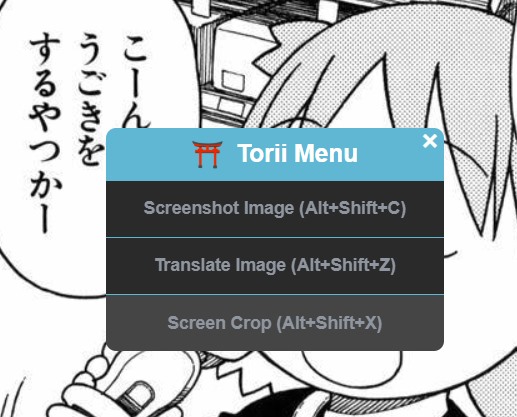
- Now Torii has its own dedicated context menu, accessed by pressing the combination "ALT + SHIFT + D"
- This bypasses the problem of not being able to right-click on the image.
- I also added shortcuts for the other commands for people who hate clicking menus and don't mind remembering the combination.
- "ALT + SHIFT + X" - Screen Crop
- "ALT + SHIFT + C" - Screenshot Translate
- "ALT + SHIFT + Z" - Normal Translate
- All of them are written in the browser's shortcut settings, where you can change them.
- Also, if you forget them, they appear in the menus themselves, so you can be reminded.
- See what it looks on the image on the right ➡️
- Added keyboard shortcut for Screen Crop feature!
- Now you can just press 'Alt + Shift + X' to use the feature instead of clicking 3 times to access it from the right-click menu.
- For those who already use Windows's 'Alt + Windows + S' for screenshots, this will be a very familiar experience!
- Please notify me if the shortcut is not working for you, as other extensions might already be using that particular key combination, in which case you need to go to your browser's shortcut settings and chage it manually.
- Naturally this is not available on mobile.
- New feature! Screen cropping support has been added!
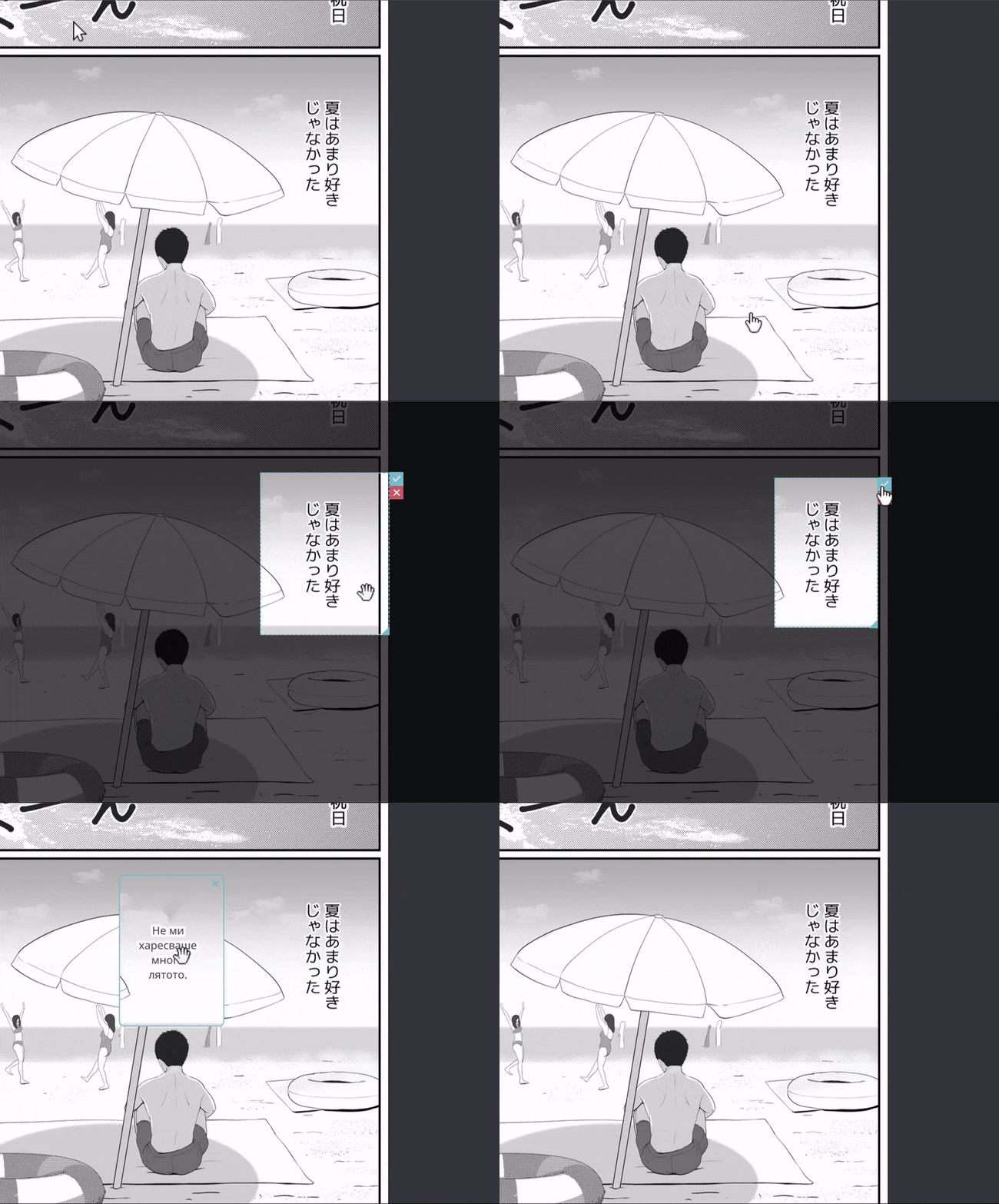
- You can now crop any part of your screen and instantly translate whatever is on it!
- Simply right-click anywhere on your page and select "Torii > Screen Crop" in the menu.
- Then drag your mouse to select the area you want to translate and it will crop it and send it for translation.
- The resulting translated image will be overlaid on top of your page and will be draggable and closable.
- Check the GIF on the right to see it in action ➡️
- This feature is not available on mobile, because mobile browsers don't allow right-click menus.
- This feature was requested by a user who wanted to translate what he's seeing on a youtube video.
- Improved mobile user experience!
- Torii now works on mobile just as well as on PC!
- The "Always visible" option is now gone, because Torii now works as intended using cursor hover, just like on PCs!
- Since there's no cursor to hover with on mobile, instead, you need to drag your finger slightly, or tap on the image (as long as the tap isn't an action or link), and the torii icon will appear as before.
- The always visible option was awful before because it created a ton of torii icons everywhere on the page.
- Now you can choose which image it should appear on, just like on desktop.
- When you "hover" over anything else which is not the image, the torii icon will either lower opacity so you can read the translation, or it will be remove if no translation has occured.
- Personal thanks to user @Waffle on discord for pushing me to improve the mobile experience.
- Google Translate has returned as an option for the translation models!
- I initially removed it some months ago because I thought it was pointless to keep, since the new GPT models are so much better when it comes to quality and cost.
- I am bringing it back because some users might not care so much about the translation quality, and care a lot more about translation speed! In fact, many users have complained that Torii is sometimes slow. This is because Torii depends on the speed of OpenAI's GPT models for translation.
- Google translate is much faster than the GPT models, and each image should take no more than 2 seconds to process. But it is more expensive than the GPT models
- The cost per image might be 0.31 credits using gpt-4o-mini, but with google it could even be as high as 1 full credit.
- Check the Google Translate API pricing page here if you wanna see for yourself.
- Not a big change, but perhaps some users might appreciate it if they only care about how fast Torii is.
- Mobile support has been added for Torii Image Translator!
- Go check out the new info page for more details here
- Most of you read your manga on your mobile devices and I've heard your feedback, so I did my best to make the Torii mobile experience as good as PC
- All you need is an extension compatible browser, which unfortunately is not Chrome (>︿<)
- Also, I'm still working on iOS support, but the browser situation there is even more annoying. Only the Orion Browser works, and not very well. Still experimental so not recommended.
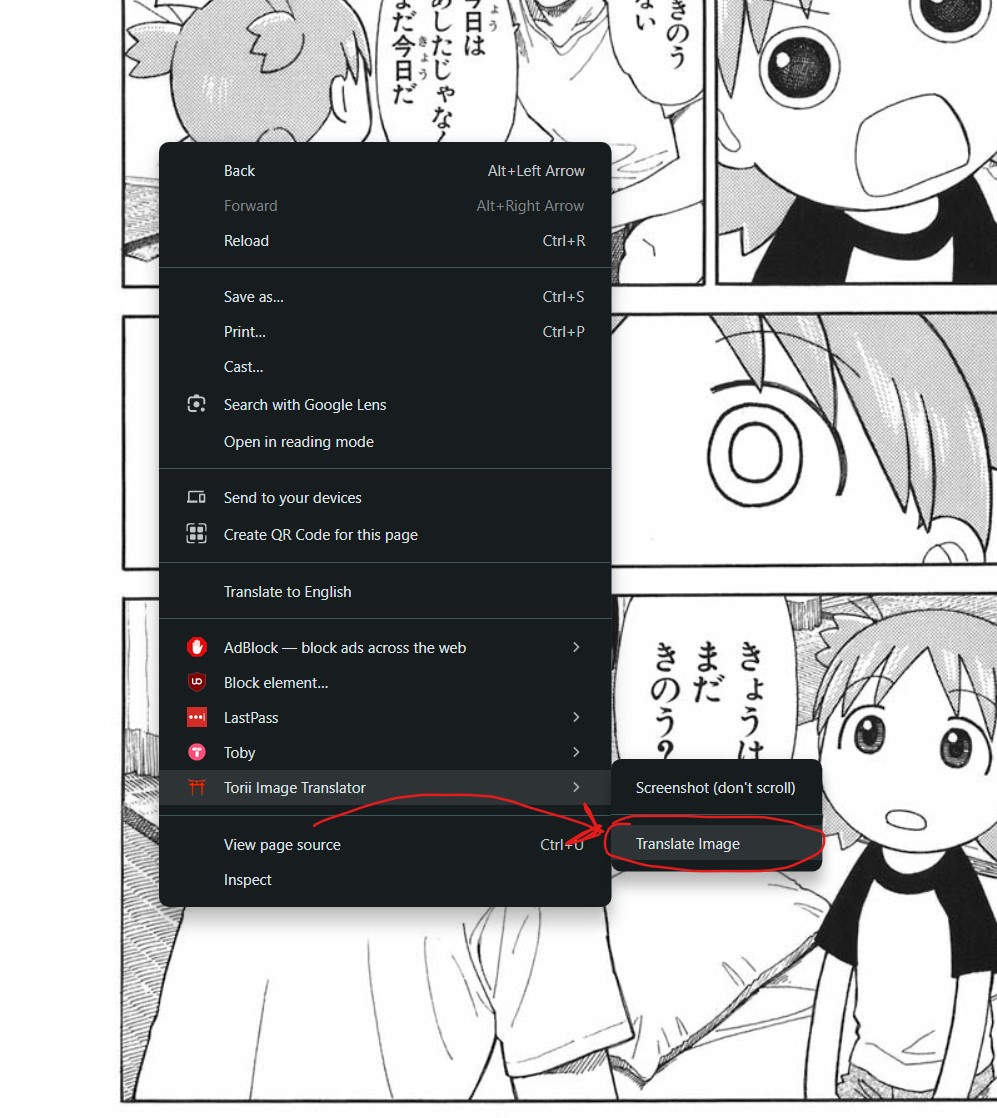
- Another feature! Right-click on image context menu has a new item.
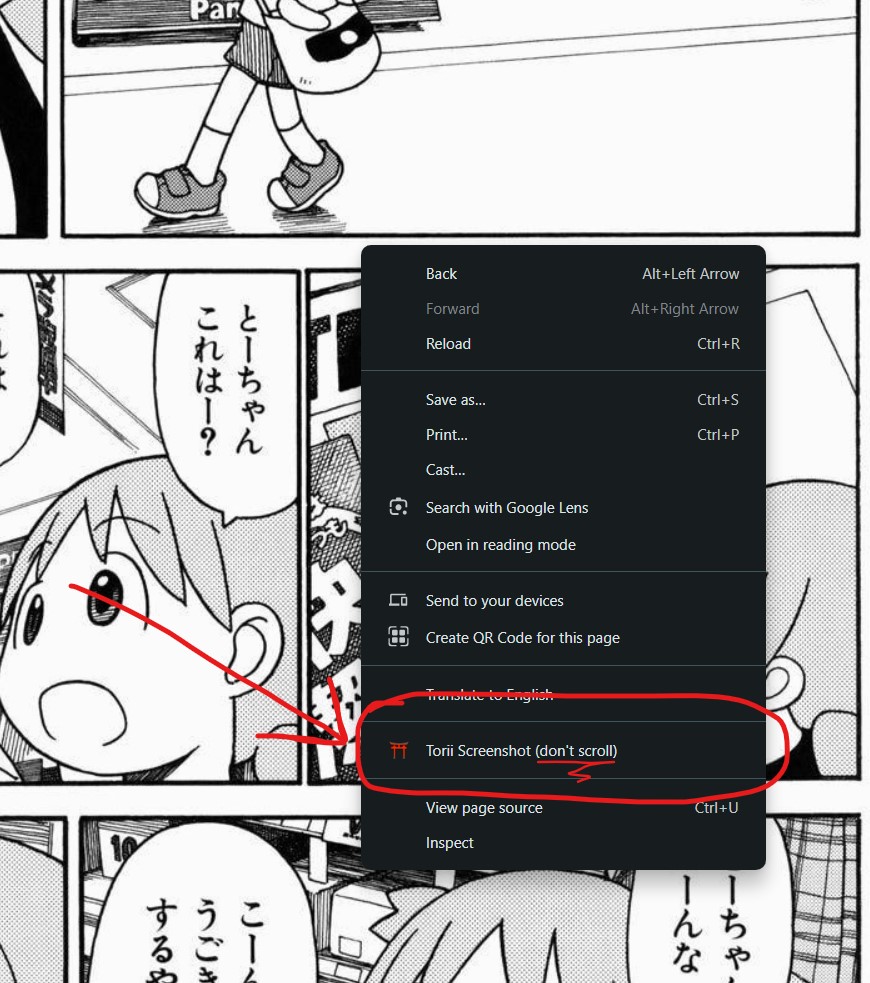
- This was already there from a previous feature, which allowed you to screenshot the image if the normal Torii Gate click didn't work. It's still there and still called "Screenshot (don't scroll)"
- Now there's a new button, which is just the normal Torii Gate translate click, but in the context menu form instead of the little red spinning icon.
- This is not a very exciting feature, but some users requested I add it because the Torii Gate was annoying for them and didn't want it to sit on top of their images.
- Now you can click "Disable" inside the popup "Settings" menu and Torii will no longer appear on top of your images. But you can still translate them using right-click on your mouse and clicking the new menu item.
- Subscription plans are now here!
- Many users have requested that I add subscriptions instead of annoying one-time payments.
- The subscriptions offer a lot more credits, for the same prices you've gotten used to with one-time payments.
- The subscriptions are not unlimited however. This is because I cannot offer infinite image translations at the current time. Torii will die if even one user decides to translate 100,000 images per day, which is possible. I can't offer that many translations for a fixed low price. It needs to work with credits again. I will rethink this in the future but for now, this is how it is.
- You can still purchase one-time credits, which still stay forever with your account. You can have both a subscription and multiple one-time credits purchases.
- If you're on a subscription, when translating you will first use up your subscription credits. If they go down to 0, then you start using your available one-time credits like before.
- Subscription credits get used up as you translate. After a month has passed, if your subscription is still active, your subscription credits get reset to the amount they started with, but they don't accumulate if you didn't use them all up from the previous month. Only one-time credits accumulate with every purchase.
- Basically, subscriptions allow you to buy credits for cheaper and it's for people who know they will need to translate things every month. If you run out of subscription credits, you can still purchase normal one-time credits.
- The new pricing table has been updated! Check it out here: Pricing
- New feature! Added a quick screenshot button to the right-click context menu.
- I'm sure some of you have encountered errors when using Torii on some websites, saying "Failed to process image ..."
- The problem is that due to Chrome restrictions, extensions like Torii don't have the ability to access the images already loaded on your page. Instead Torii needs to re-download them, which some websites don't allow, which is why you get errors on some of them and not others.
- This update tries to fix this by taking a screenshot of the pixels on your screen, instead of downloading the image.
- In order to take a screenshot, your screen must scroll through the entire image and stich together all the pixels.
- This means you must not scroll while a screenshot is being taken or your image will be broken.
- This also means that this screenshot feature cannot work with the auto-translation feature.
- This feature had to be added to the context menu on right-click because that's the only way Chrome allows the extension to have screenshot permissions.
- This feature should only be used on websites where you get the errors. You should still use Torii normally otherwise.
- Just right-click on the image with your mouse and select the screenshot option.
- See what it looks on the image on the right ➡️
- This is the best that can be done within the developer implementations imposed by Chrome.
- I hope you like it! Thank you for using Torii :]
- New OpenAI model released!
- GPT-4o now has a new version which is cheaper by 50% compared to the old one.
- This means that each translation will cost a little less than before, meaning less credits used, meaning more translations for you guys!
- GPT-4o-mini is unaffected.
- Also, I have changed the FREE PLAN to now be considered a FREE TRIAL, meaning it it should be used by new users to test things out to see if Torii is right for them or not. Free credits no longer reset every week. This is a financial decision I had to make.
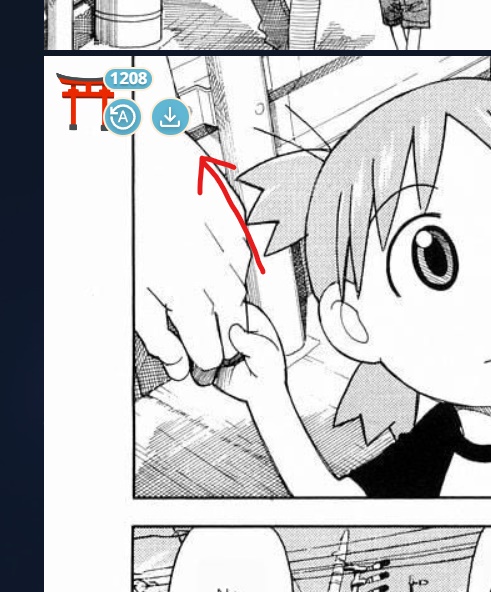
- New feature! Added a download button for your images!
- It is located right next to the auto-translation button.
- Pressing it will download all of the translated images on the page - either as a single image or as a zip file with all of them.
- See what it looks on the image on the right ➡️
- Added the option in settings to make the Torii icon always visible for every image on the page, instead of just on hover. The default behavior is on hover as it always has been, and is recommended for PCs. This new option is useful for mobile and tablet devices which do not have mouse cursors and can't hover over images.
- Removed DeepL and Google translation models, because they're too expensive and do not output high quality translations.
- Only GPT-4 models are left, with the mini model being the default one. The large model is 20% cheaper than DeepL and the mini one is 200% cheaper. They are also much higher in translation quality and their only minor downside is that they are slightly slower, by 1-2 seconds on average which is no big deal for most users, especially if using auto-translation.
- For example, with DeepL for 20 credits you can translate ~20 images, but with GPT-4-mini, you can translate 60+ images at higher quality. It's just a no-brainer to use.
- Also, no one seems to be using Google ...
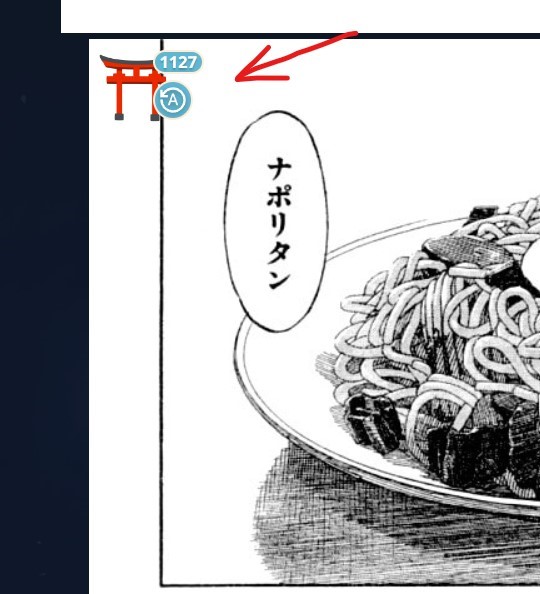
- New feature! Added auto translation button!
- Many users requested I add this - now instead of reading a whole manga chapter and clicking on each image one-by-one, you can simply toggle auto-translation and just read your manga normally while every image on the page is being translated at the same time!
- The button is located right next to the Torii gate - a blue button with the letter "A" for auto. It rotates when it is active.
- The auto-translation is active until you click it again or until the page refreshes.
- See what it looks on the image on the right ➡️
- Also for this update, some small bug fixes and improved readability: translated text should now better fill up text bubbles in manga instead of being super small.
- Also fixed arabic, hebrew and other right-to-left languages. Now they are fully supported.
- Because this is new, and only tested by me (not thousands of users), stuff might go wrong initially for some people. In which case, please email me or provide feedback of user experience. I will be there to immediately fix it. Currently the button auto-translates all images on the page which are at least 500px in width and height. If you have any suggestions, let me know!
- Added support for other fonts!
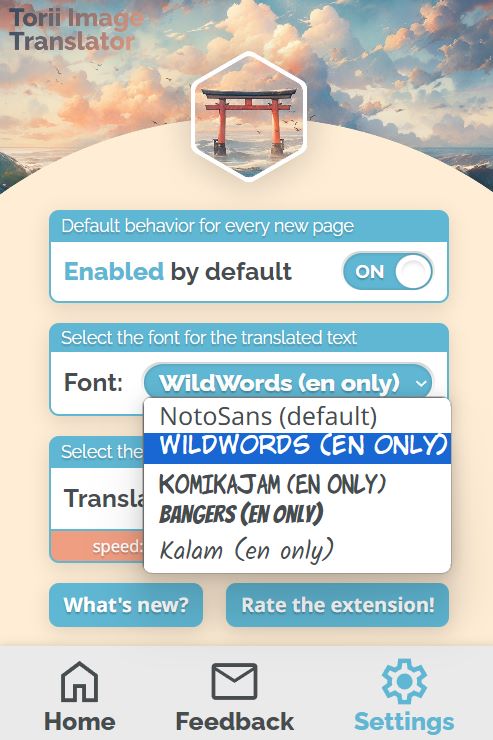
- Most manga readers are familiar with the CC WildWords font used for most manga translations.
- New fonts added are: CC WildWords, Kalam, Bangers, Komika Jam
- These fonts are English only. They do not support other languages, where only will be used.
- Simply go to the settings page and select one. Default is, which is what Torii has always used.
- Image on the right shows what is looks like in the settings page ➡️
- New and improved GPT translation model, called GPT-4o-mini, has replaced the old GPT-3.5 model.
- This model was just released by OpenAI and they claim it is better, cheaper and faster than GPT-3.5.
- You can read more about it here.
- To use, simply select the new GPT-4-mini option from the model dropdown.
- The new model is 60% cheaper than the old model, which was already cheap to begin with. Meaning, this new model will give you nearly the best quality, and will allow nearly the maximum possible number of images for your credits. The only downside, once again, is that since it is a GPT model, it is somewhat slower than DeepL for example, but that is a choice you have to make.
- Fixed some more login errors.
- Extension should now work on more browsers, such as Brave.
- Fixed the local translate on the website not being able to download back more than 10 images. Now all images will be downloaded.
- Made a nice improvement to image inpainting, which is the process of removing the old text from the image!
- You should now see far fewer annoying smudges around the new text!
- This is achieved by reusing the background color of the old text whenever adequate.
- Please send feedback if you notice anything weird :]
- Bulk local translation now available!
- Translate multiple images at the same time here at: Torii Translate
- Now using latest GPT-4o model, released today by OpenAI!
- GPT-4o is 2x cheaper, 2x faster, and outputs higher quality translations.
- This means Torii translations using GPT-4o will cost 2x less translation credits per image request and will arrive 2x faster, which is great for you, the user!
- Multiple Torii Gates can now appear on multiple images, instead of just one at a time.
- Meaning, now you can translate multiple images at once, instead of waiting for each one to complete translating.
- Improved extension funcionality and flexibility.
- General bug fixes.
- General bug fixes.
- Extension should now work on more websites, for example: Pixiv
- Pricing options are now cheaper.
- Second option changed from $6.99 to $5.99 and from $1.35 per 100 credits to $1.20 per 100 credits
- Third option changed from $14.99 to $12.99 and from $1.15 per 100 credits to $1.08 per 100 credits
- Extension now works on Edge and other Chromium browsers (hopefully; only Edge tested)
- Fixed more login issues.
- Fixed some login issues.
- Logs now available when inspecting the extension using dev-tools.
- Added new "Rate the extension" button in "Settings" page.
- Torii Image Translator public release!